

User guide3 min
Create your account
Signing up takes two steps and about a minute: enter your email, then confirm the code and choose a password. You end up with a workspace ready to use.
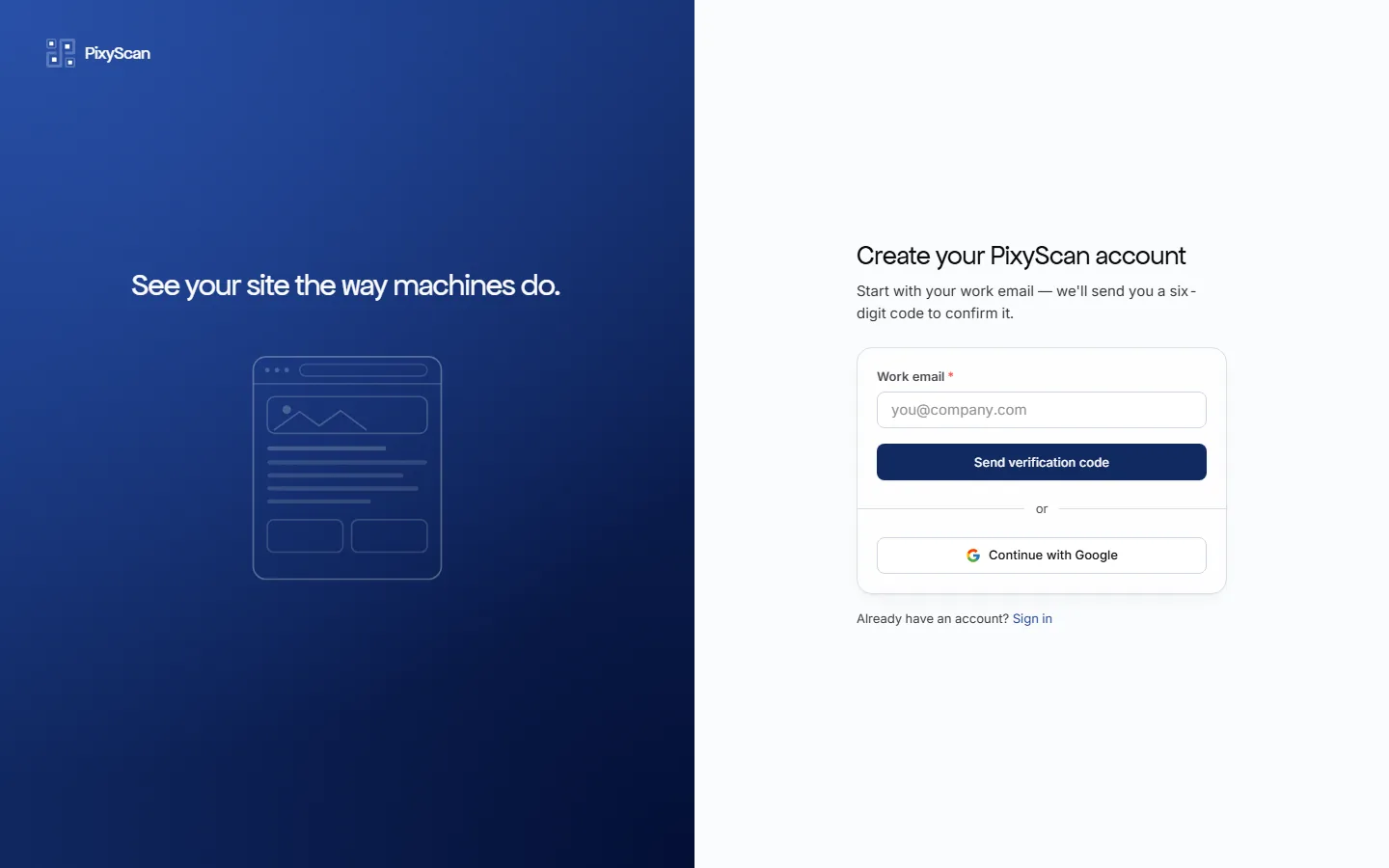
Start with your email#
We send a six-digit code to confirm the address.
Go to the sign-up screen and enter the address you want the account under. PixyScan emails a six-digit code and moves you to the second step. No account exists until you enter that code.
app.pixyscan.com/signup
Enter the code and pick a password#
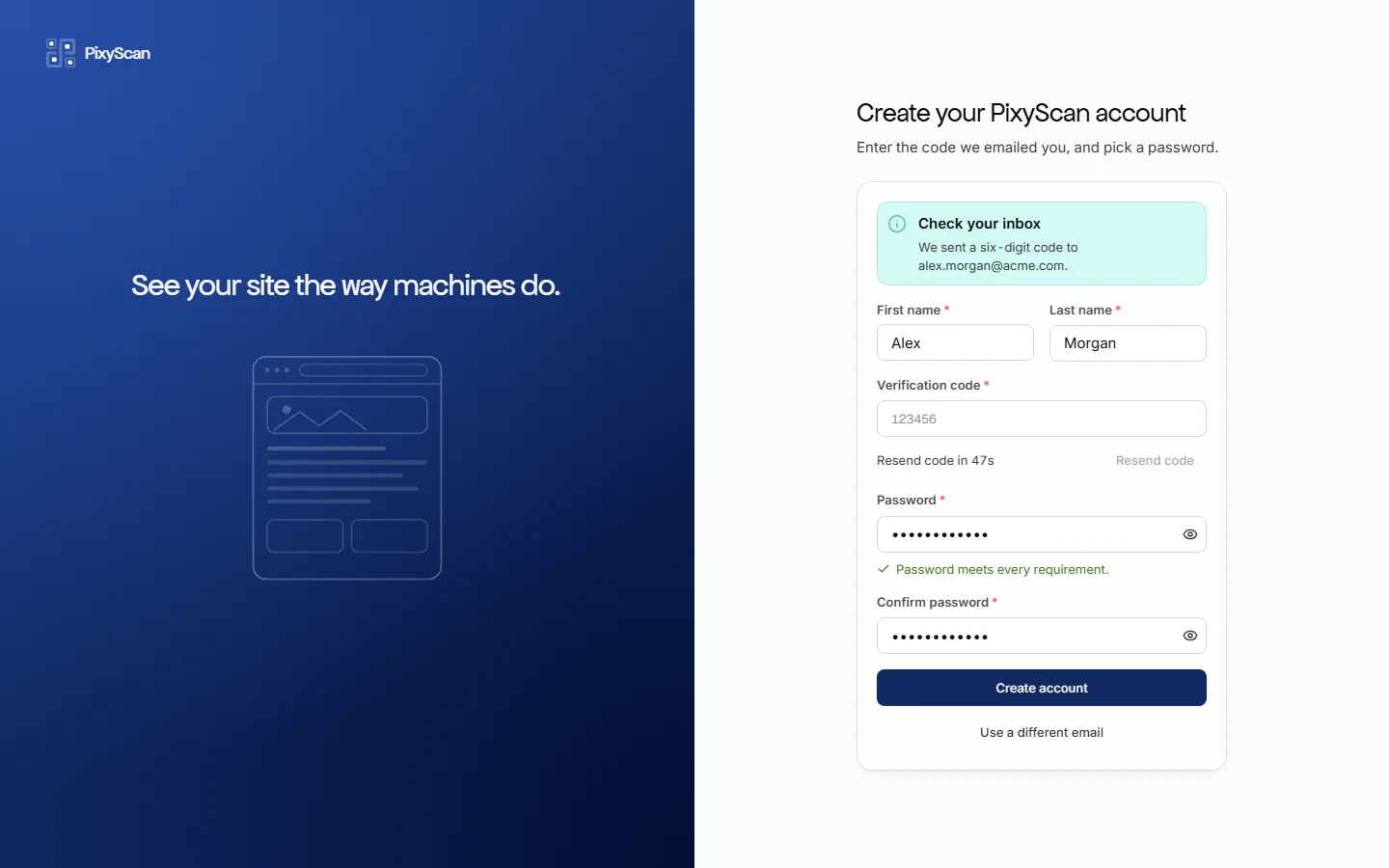
Your name, the code from your inbox, and a password.
- 1
Open the email and copy the code
It arrives within a few seconds. Check your spam folder before pressing Resend code, because a new code cancels the old one.
- 2
Fill in your first and last name
This is the name your colleagues see on the members screen.
- 3
Choose a password that satisfies every rule
The checklist under the field ticks each rule as you type. The form stays disabled until all five are met.
- 4
Press Create account, then sign in
Your account is created and you are sent to the sign-in screen. Signing in puts you straight into a workspace of your own.
- Minimum length
- 8 characters
- Must contain
- A lowercase letter
- Must contain
- An uppercase letter
- Must contain
- A number
- Must contain
- A symbol
- Code length
- 6 digits
app.pixyscan.com/signup
Codes expire
Or continue with Google#
One click, with no code and no password.
The Continue with Google button on the first step replaces both steps. You authorise PixyScan with your Google account and land straight in the product. The account has no password, so use the same button to sign in later.
If somebody invited you#
Sign up with the address the invitation was sent to.
An invitation email links to sign-up with the address already filled in and a note saying who invited you. Use that address, not a different one, and PixyScan returns you to the invitation once your account exists.
An invited account gets no workspace of its own
If the product does not match this page, the page is wrong and we would like to know. Tell us