

Know the moment something changes
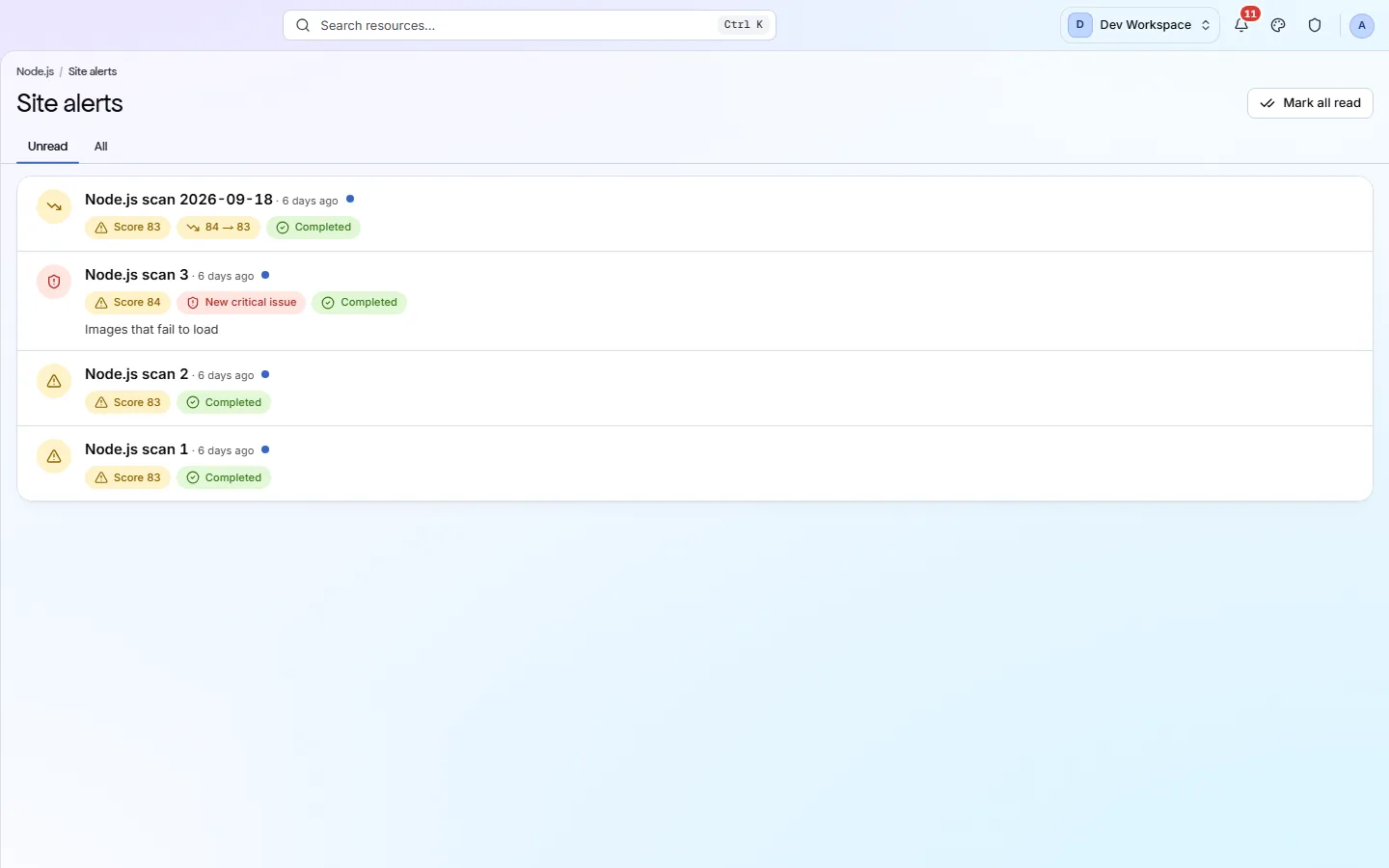
Site alerts is the inbox for one site. Every scan gets one row that sums up what happened: finished, failed, a lower score, or a new critical problem. Click a row to jump to the screen that explains it.
- kinds of alert
- 8
- kinds of alert
- default score threshold
- 97
- default score threshold
- channels beyond the app
- 3
- channels beyond the app
The alerts
What each alert is telling you
Each event shows as a coloured chip on its scan's row. Red needs action, amber needs a look, green is good news.
- Scan completed
A scan finished.
Nothing, unless another chip sits beside it.
- Scan failed
A scan could not finish. The chip says why in plain words.
Check the site is online and reachable, then scan again.
- Score decreased
The health score is lower than the previous scan. The chip shows both scores.
Open the row to see the issues behind the drop.
- Score below threshold
The score is under your site's minimum, 97 unless you change it.
Work through the top of the Issues list until you are back above it.
- New critical issue
A critical problem the previous scan did not have.
Fix it first. The row opens the issue and its fix guide.
- Search traffic dropped
Google clicks fell sharply after a deploy. Needs Search Console and CI/CD scans.
Compare the scans either side of the deploy in Changes.
Where alerts go
Hear about it where you already work
Set up channels in the site's Settings, Alerts tab. Alerts always show here too.
In the app
Every alert lands here and in your notification bell. Unread shows what is new; All keeps the history.
Email
Sent to the site's members and the workspace admins, with one-click unsubscribe. Turn each kind on or off.
Slack
Paste a Slack webhook address and alerts post into your channel. Leave it empty to switch it off.
Webhook
Send alerts to any https address, such as your on-call or ticketing tool.
Your first visit
Set up alerts in three steps
- 1
Open the site's Settings and go to the Alerts tab.
- 2
Turn on the emails you want: finished or failed scans, score drops and new critical issues.
- 3
Paste a Slack or webhook address if your team works there.
FAQ
Common questions about this feature
Will I get an email for every scan?
The “scan finished” email is sent for scheduled scans only, so scans you start yourself do not fill your inbox. Slack and webhooks get every scan.
Why didn't I get a score drop alert on my first scan?
Score drops and new critical issues compare with the previous scan, so they start from the second scan of a site.
Can I change the score threshold?
Yes. It is 97 unless you change it, under Settings, SDK & CI/CD. The below-threshold alert shows in the app only.
Does PixyScan send text messages?
No. To reach a phone or an on-call tool, point the webhook at it.
Continue the product tour
Previous and next features
Features follow the order of the app’s menu. See the full list to jump to any of them.
See what is wrong with your site
Add your site and get your score, your to-do list and a fix guide for every problem. Free for one site and 500 pages a month, with no time limit.
Nothing to install · Cancel any time