

User guide3 min
Scan history
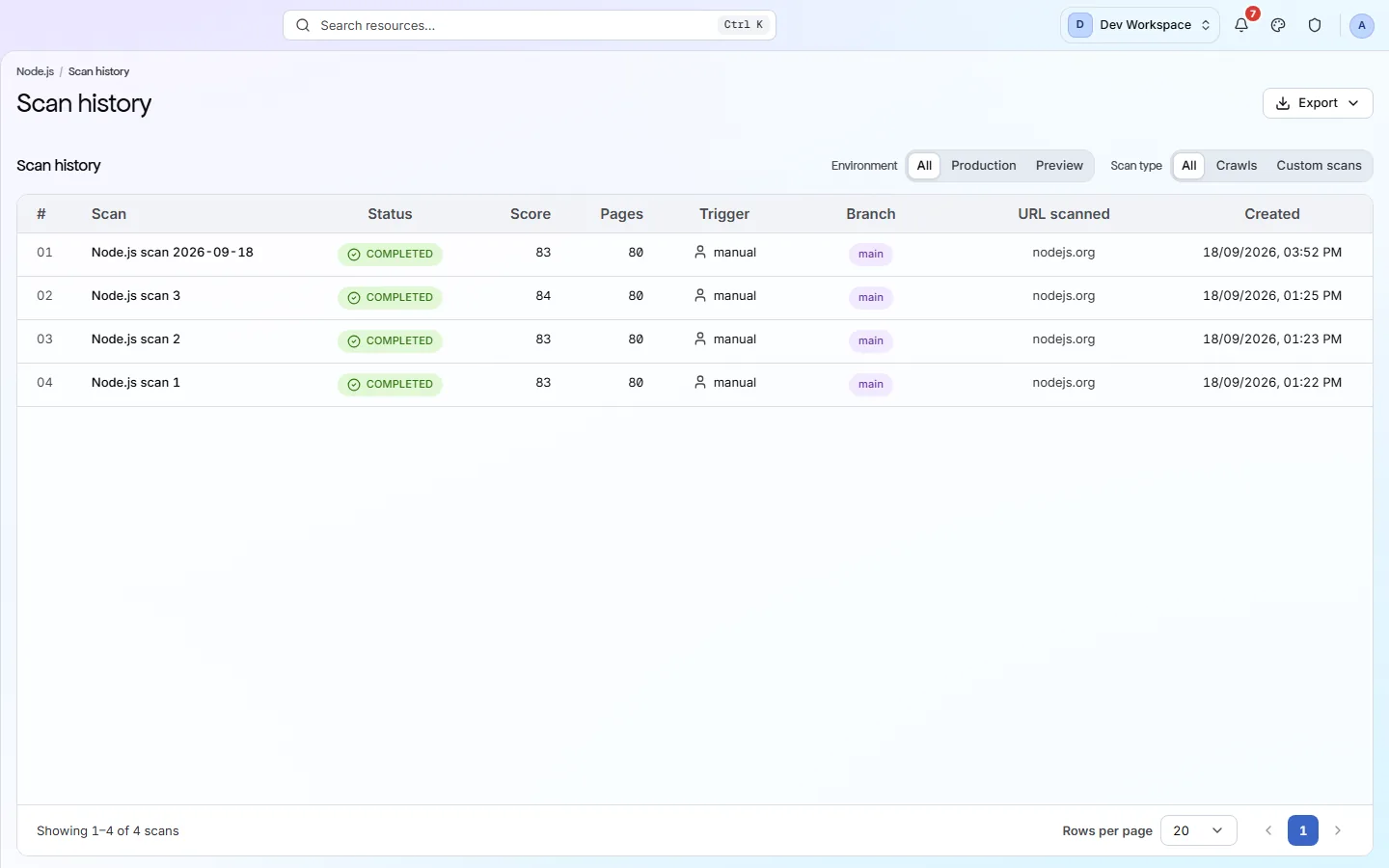
Every scan this site has run, with what triggered it and what it measured. Opening one switches every screen to that scan, which is the part worth knowing about.
How to get there#
Monitor → Scan history.
- 1
Open Scan history in the sidebar
Last under Monitor.
- 2
Or press the scan count on the site overview
Shown as “4 scans” in the row of links under the score.
app.pixyscan.com/w/…/s/…/scans
Reading a row#
Eight columns, of which Trigger and Branch explain the most.
| Field | What it tells you | What it does |
|---|---|---|
| Scan | Its name | Named after its date, or whatever you called it. |
| Status | Completed · Failed · Cancelled | A failed scan has no report to open, but the row stays so you know it happened. |
| Score | 0-100 | What that scan scored. Blank if it did not finish. |
| Pages | Count | How many URLs it crawled, at one credit each. |
| Trigger | Manual · Schedule · SDK | What started it. This is the column that explains a scan you did not expect. |
| Branch | main, a preview | Which branch it measured. Scans are only compared with others on the same branch. |
| URL scanned | The target | The address it actually crawled. |
| Created | When | When it started, with how long it took beside it. |
The two filter rows above narrow the list by environment (All, Production, Preview) and by type (All, Crawls, Custom scans).
Opening a scan switches every screen to it#
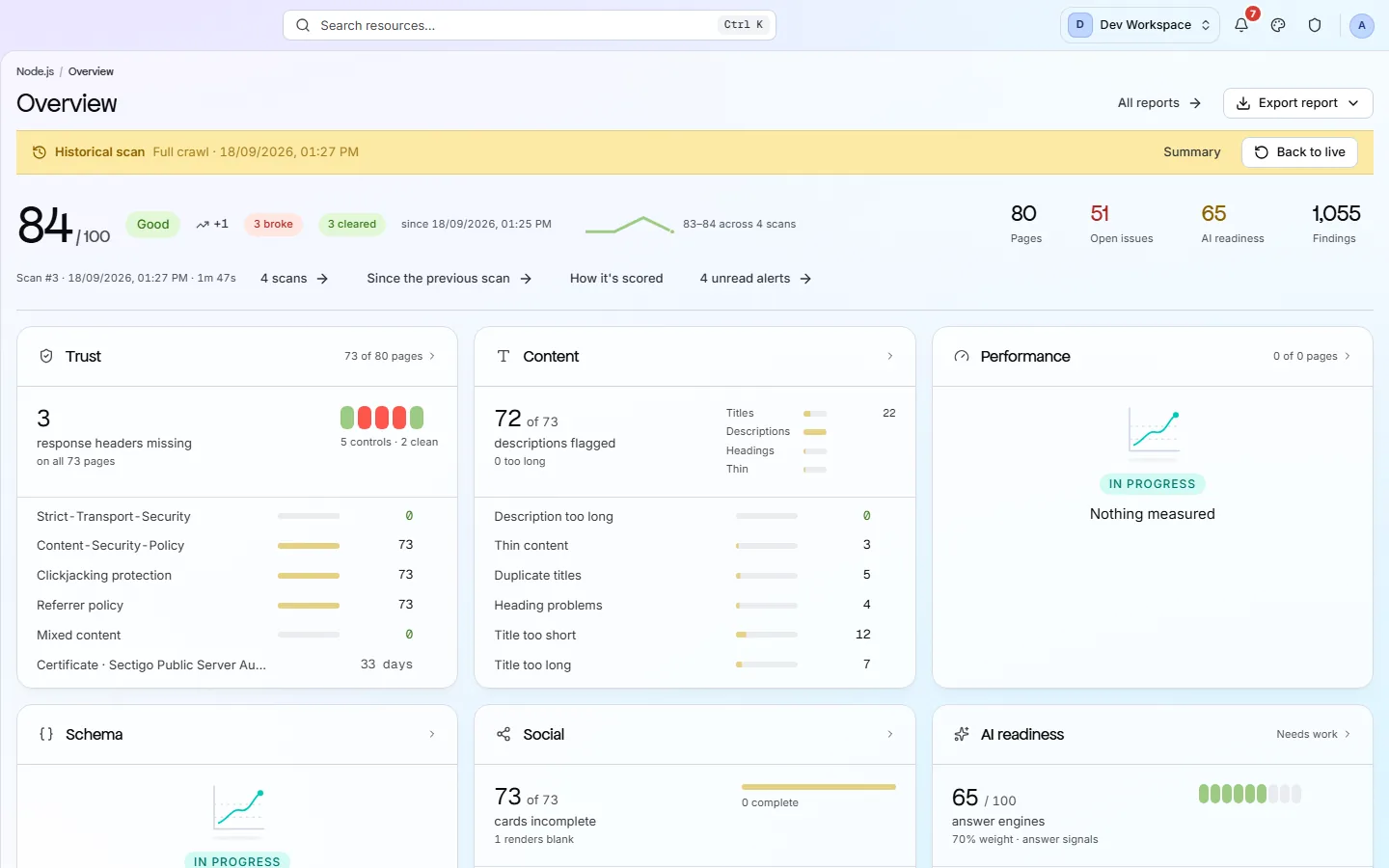
A band at the top tells you when this is happening.
Click a scan and you land on its overview with a Historical scan band above it. From then on every screen in the sidebar - Issues, Pages, Content and the rest - shows that scan instead of the latest one. The scan is saved in the address, so a link you share opens the same view.
Back to live in that band returns you to the latest scan. Settings and this screen always stay current.
A pinned run
Scans are kept for as long as your plan allows
If the product does not match this page, the page is wrong and we would like to know. Tell us