

User guide4 min
Inside a finding
One failed check, in four tabs: what was found, where, how to fix it, and what the check tests. Each tab has its own address, so you can send a colleague straight to the fix.
How to get there#
Click any row on the Issues screen.
- 1
Open Issues in the sidebar
Under Understand.
- 2
Click a row
The arrows at the top right move through the list in order (2 / 53), so you can work through it without going back.
app.pixyscan.com/w/…/s/…/issues/…
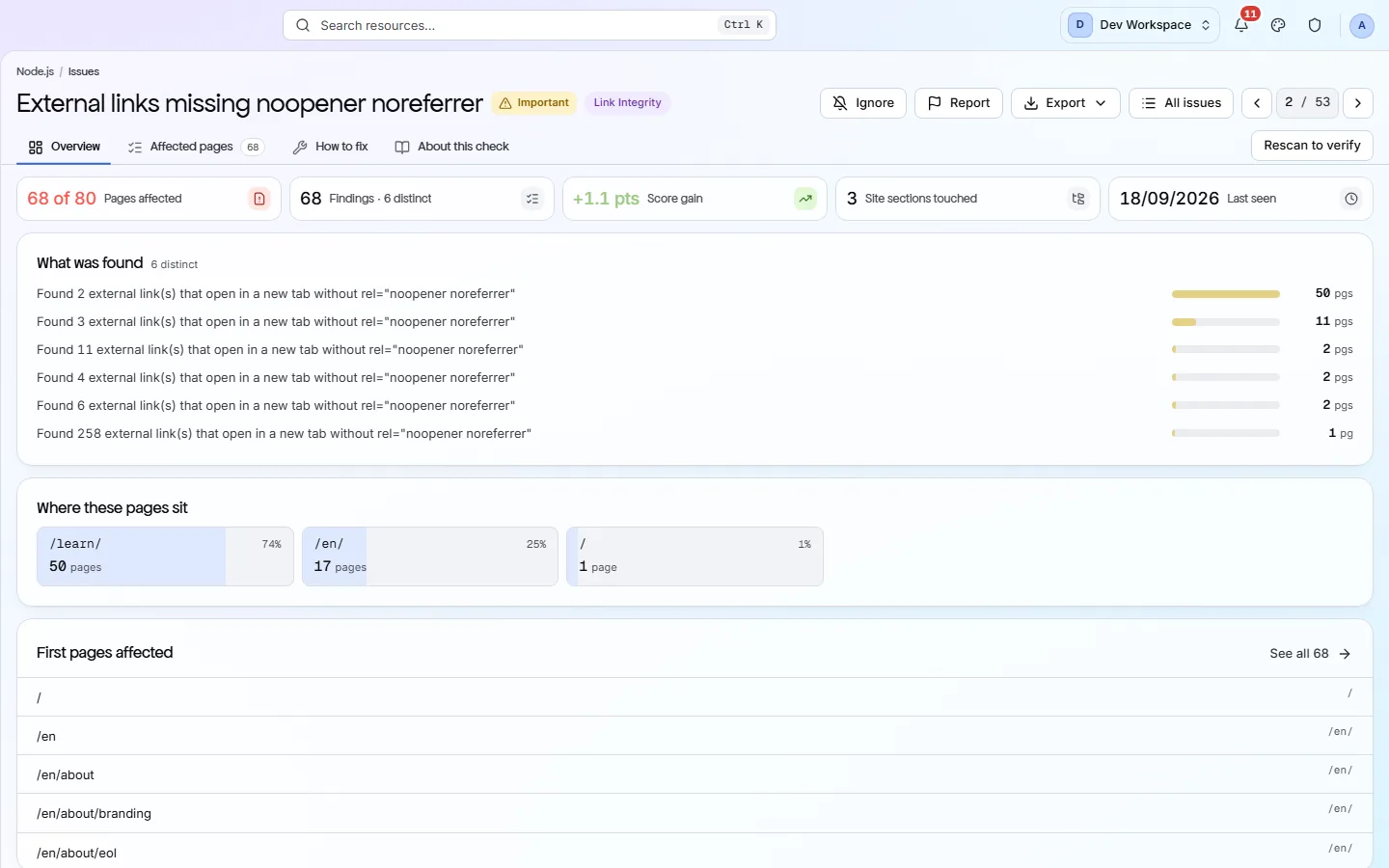
The band across the top#
Five figures, and the actions beside them.
| Field | Example | What it does |
|---|---|---|
| Pages affected | 68 of 80 | How many pages are affected. A site-wide check says “Site-wide · no page list” instead. |
| Findings | 68 · 6 distinct | How many times it was recorded, and how many different values there were. Six distinct values across 68 pages usually means six templates, not 68 separate problems. |
| Score gain | +1.1 pts | The points your health score gains when it passes. |
| Site sections touched | 3 | How many folders of the site it spans. |
| Last seen | A date | The most recent scan that found it. |
| Ignore · Report · Export | Actions | Hide it for this site, tell us the check is wrong, or download the affected pages as a file. |
| Rescan to verify | Action | Starts a new scan from here, for when you have just deployed the fix. |
The four tabs#
Each has its own address, so each can be linked to.
| Field | Answers | What it does |
|---|---|---|
| Overview | What was found? | The exact values found, how many pages carry each one, which folders those pages sit in, and the first few by name. |
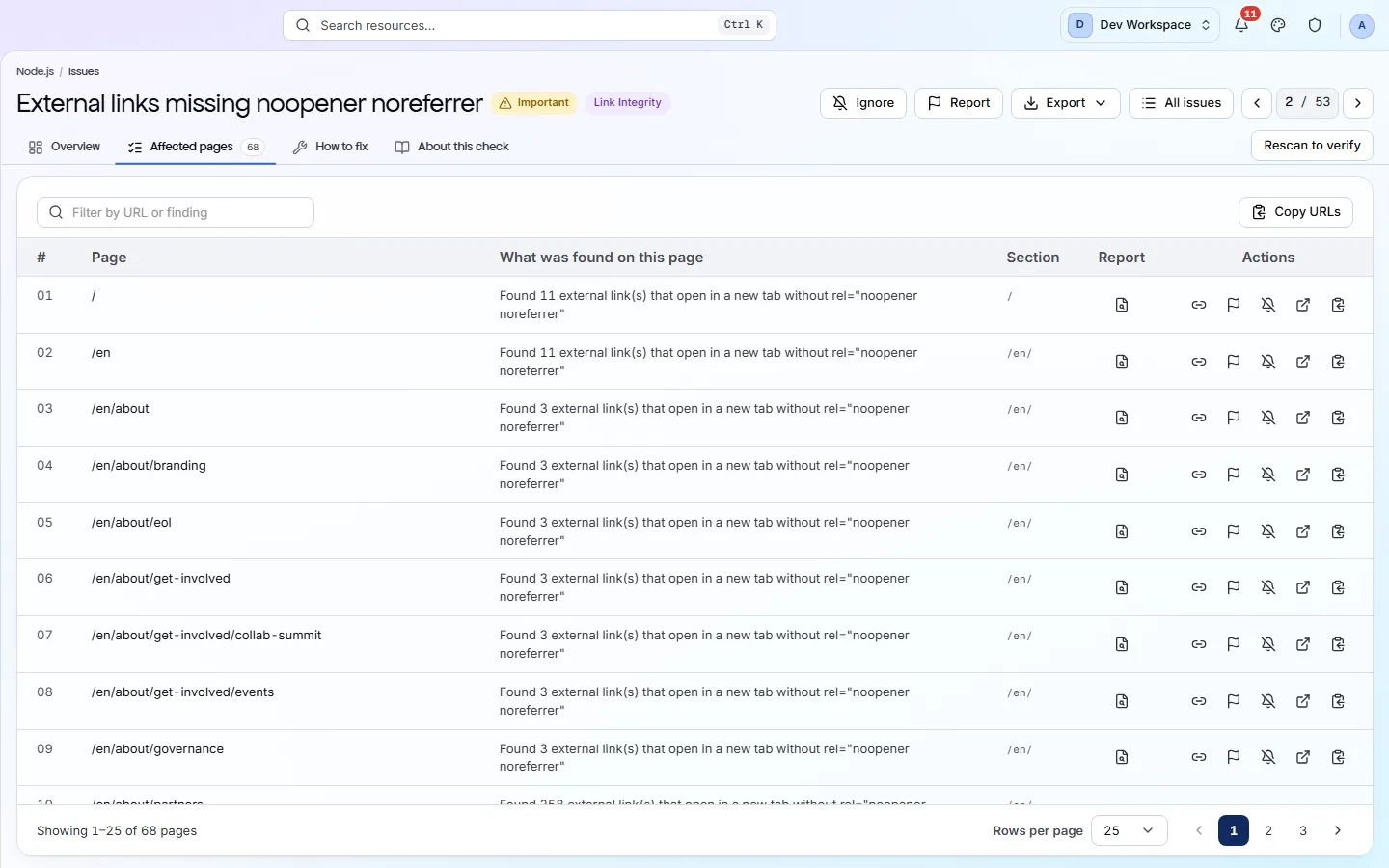
| Affected pages | Where exactly? | Every affected URL, with the value found on it, its status, and a link to that page's own report. Not shown for a site-wide check. |
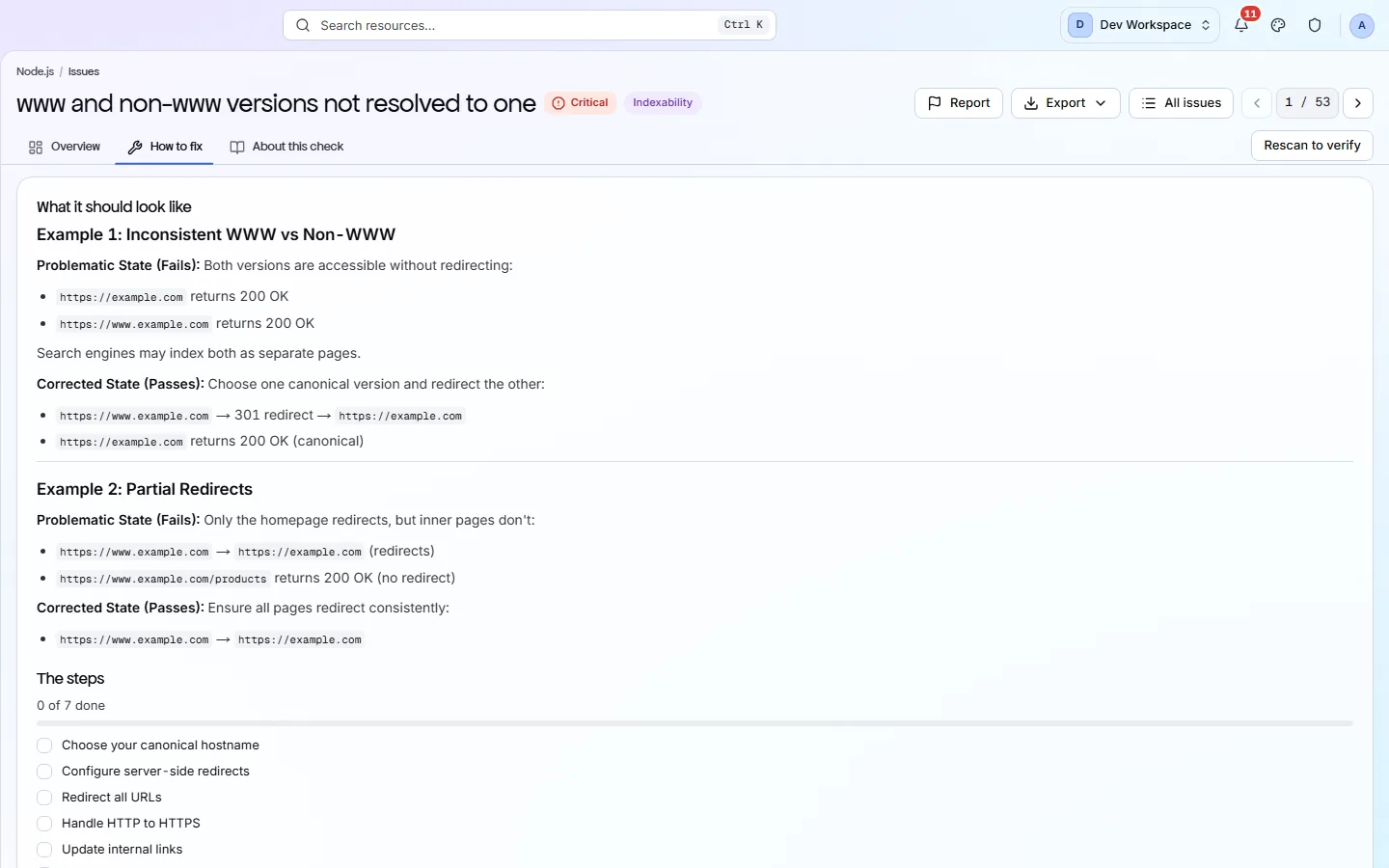
| How to fix | What do I change? | A before-and-after example, then the steps as a checklist you can tick off. |
| About this check | What is it testing? | What the check looks for and why it matters. |
app.pixyscan.com/w/…/s/…/issues/…/fix
app.pixyscan.com/w/…/s/…/issues/…/affected-pages
Not every check has a guide yet
After you have fixed it#
Rescan, then check the result.
Rescan to verify scans the site again and tells you whether this finding has gone. If you fixed several things at once, read Changes instead - it shows the whole scan as new, fixed and still open.
If the product does not match this page, the page is wrong and we would like to know. Tell us