

Find any page, link or image on your site
Browse everything PixyScan found on your site, and open any page for its full report. These views use the same scan as the audit, so nothing extra runs.
Does this sound familiar?
You cannot fix a page you do not know about, and most sites have more pages than anyone remembers.
- A page is broken, and you do not know which pages link to it.
- Old test pages and forgotten folders are still live, and nobody has a list.
- Before a migration you need every URL and its status, and all you have is last year's spreadsheet.
How it works
How it works, in three steps
Browse every page, link and image the scan found, and open any page for its full report.
- Step 1
Run a scan
One scan records each page's status code, tags, headings, links, images, structured data and headers. Nothing extra has to run.
- Step 2
Pick a view
Pages lists every URL. Structure shows how your site is organised. Crawlability shows robots.txt and sitemaps. Links and Images show those.
- Step 3
Open any page
Click a row to open that page's full report. Every list has search and filters, and from Hobby up you can export any list as CSV, XLSX or JSON.
What you get
What you get with it
You can find a broken or forgotten page fast, and see exactly what search engines see on it.
- 01
A full report for any page
Open a page to see its status, title, description, headings, links, images, structured data and security headers. It also previews how the page may look in search results.
- 02
The shape of your site
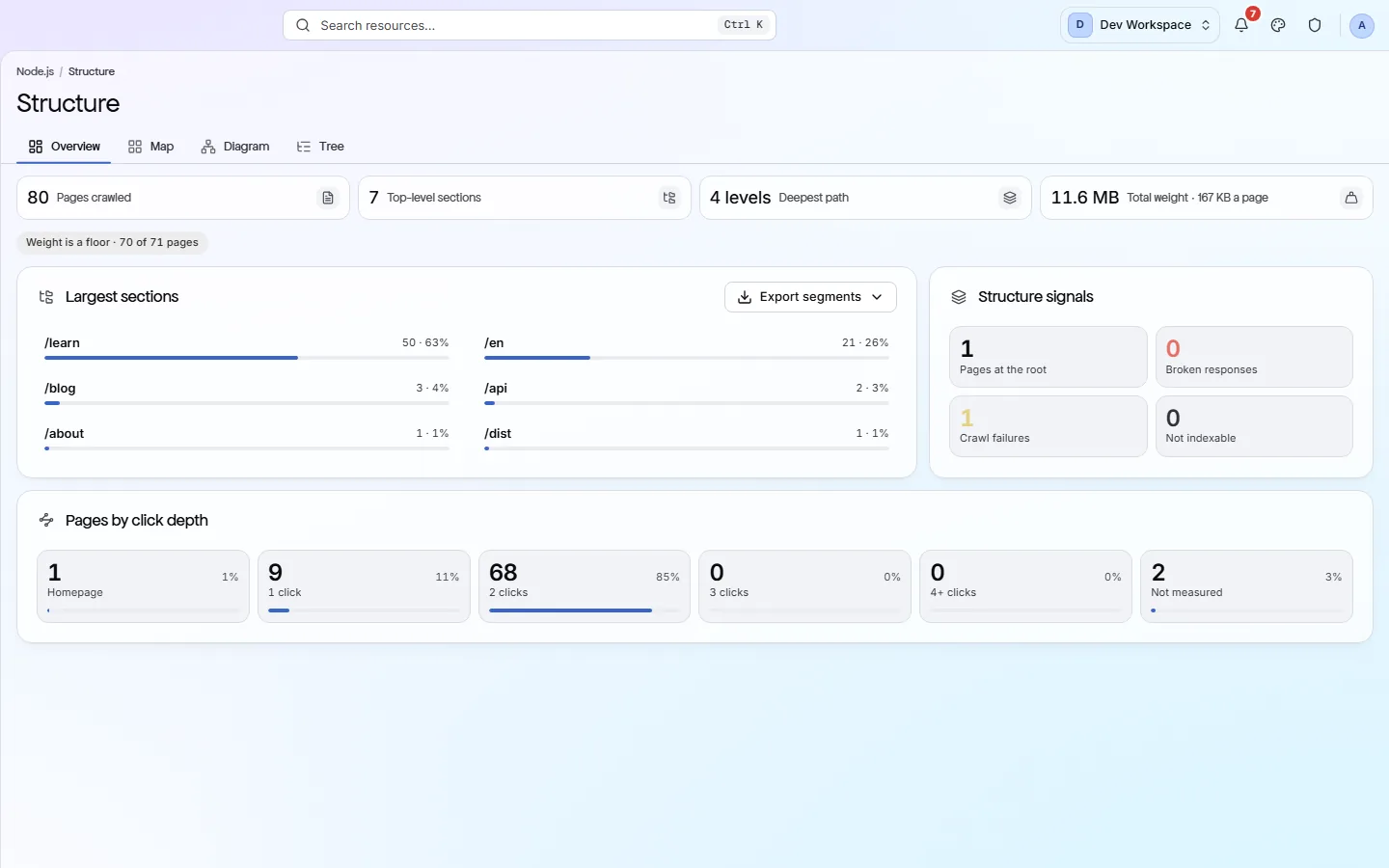
The Structure view groups pages into sections and shows how many clicks each is from your homepage. Very deep or oddly large sections are worth a look.
- 03
robots.txt and sitemaps together
The Crawlability view shows your robots.txt rules (what bots may visit) next to your sitemaps. You can spot where they disagree, such as a sitemap page that robots.txt blocks.
- 04
Links and images, grouped
The Links view lists broken and insecure links and every site you link to. The Images view lists every image with its alt text, format and size.
Which tiers include it
Every tier. Exports and checking outside links and images start on Hobby.
- Browsing, search and filters work on every tier.
- Exporting any list as CSV, XLSX or JSON starts on Hobby.
- Checking that outside links and images still load starts on Hobby: 50,000 checks a month, 250,000 on Basic and 1,000,000 on Pro.
- Pages built with JavaScript need JavaScript rendering, from Pro up.
- Google clicks and impressions next to each page start on Basic, with Search Console connected.
What it doesn’t do
- No rank tracking, keyword research or backlink data.
- It lists links on your own pages, not links on other sites that point to you.
- No log-file analysis (reading your server's visit records).
Why use it
When it helps
Everyday moments where it saves you time or catches a problem early.
Before moving to a new site
Export a list of every URL and its status code before you move. Check it against the new site so no page gets lost.
Checking a reported problem
Someone says a page has the wrong tags? Open its report to see exactly what the last scan found.
Finding forgotten pages
The Structure view shows each section of your site and its size. Old test pages and leftover folders are easy to spot.
Where to find it in the app
Take the product tourExplore
Pages
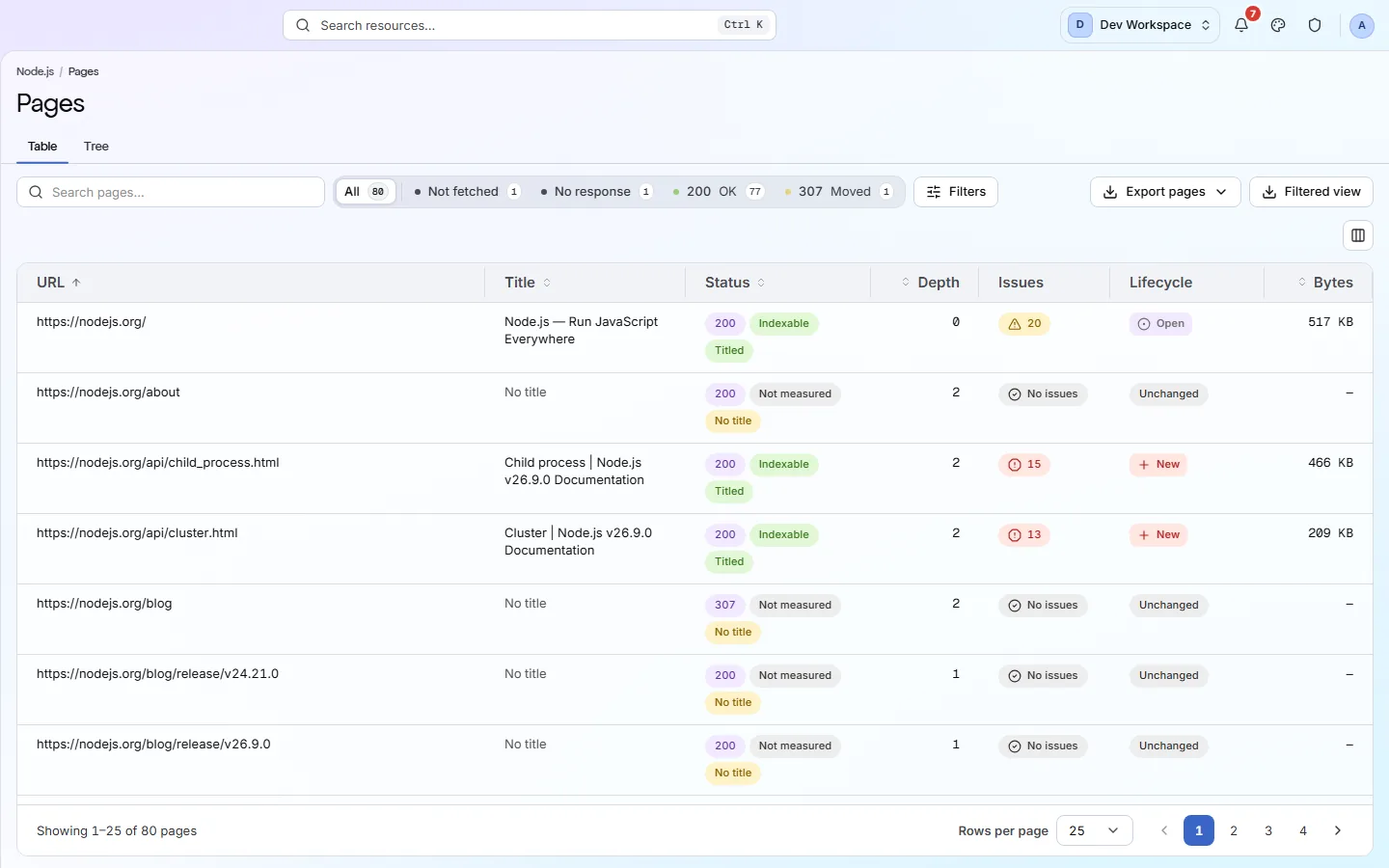
The Pages view lists every URL the scan found, as a table or a folder tree. Filter it to find broken or hidden pages. Open any page for a full report on it.
Explore
Structure
The Structure view draws your site from the pages the scan found, grouped into folders such as /blog/. It shows your biggest sections, how deep pages sit, and folders you may have published by mistake.
Explore
Crawlability
Crawlability is whether search engines and AI bots can find and reach your pages. This feature shows your robots.txt rules, your sitemaps, your redirects and anything that keeps bots out.
Explore
Links
The Links view shows every link the scan found: links to other sites and links between your own pages. Use it to find broken links, the pages they sit on, and pages that get too few links.
Explore
Images
The Images view puts every image the scan found into one gallery. It shows which are missing alt text, broken, too heavy or in an older format, and which pages use each one.
Questions
Common questions
Short answers about tiers, setup and limits.
Is this a separate scan?
No. These views read the same scan as the audit, so browsing them does not start anything or use credits.
Why does this matter for search and AI tools?
A page that returns an error, sits many clicks deep or is blocked by robots.txt is harder for them to reach. Seeing everything in one place helps you find those pages.
Does it see pages built with JavaScript?
Yes, from Pro up, when you choose JavaScript rendering in Settings → Crawl. Otherwise it reads the HTML your server sends, which is faster.
How many pages can one scan cover?
Up to 500 on Free, 5,000 on Hobby, 10,000 on Basic and 15,000 on Pro. You can include or exclude parts of your site in Settings → Crawl.
Can I see which pages get search traffic?
Yes, from Basic up, once you connect Google Search Console. The Pages table and each issue's affected pages show Google clicks and impressions over the last 28 days, and you can sort by them to fix busy pages first.
Does it show links from other sites to mine?
No. It only lists links on your own pages. Backlinks need a different kind of tool.
Other features
All featuresReports and exports
Turn any scan into a report or data file: 61+ kinds, in PDF, CSV, XLSX, JSON or Markdown.
ReadWorkspaces, sites and roles
Put your sites and your team in one workspace, and give each person only the sites they need.
ReadRelease gate
Scan every release from your build pipeline, and fail the build when it would break your SEO.
ReadSee what is wrong with your site
Add your site and get your score, your to-do list and a fix guide for every problem. Free for one site and 500 pages a month, with no time limit.
Nothing to install · Cancel any time