

User guide5 min
The issues work list
Every failed check, already sorted by how much fixing it is worth. Start at the top and work down.
Read the list#
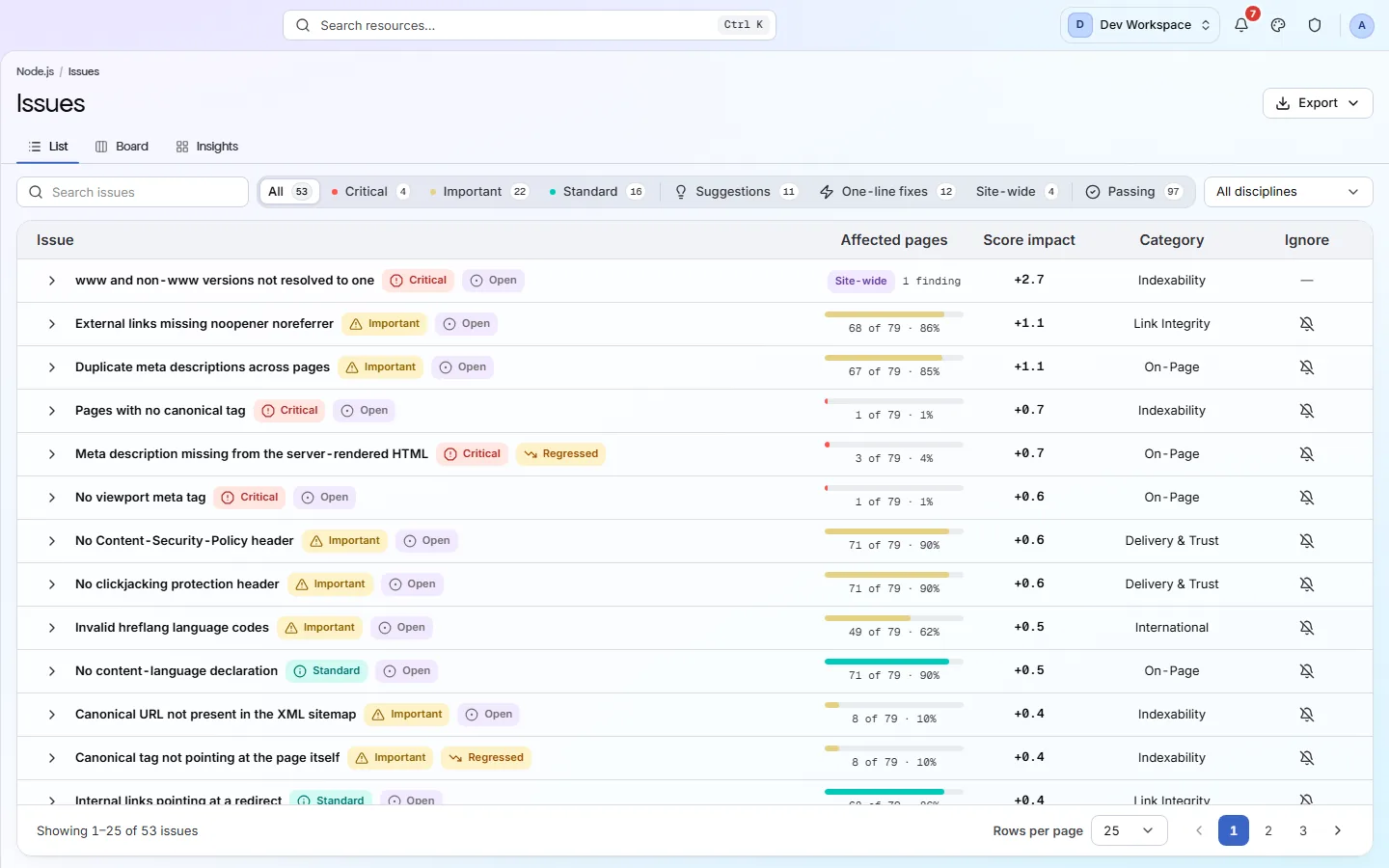
Each row is one failed check, with three numbers on it.
How serious the failure is, how many of your pages it affects, and how many points you get back for fixing it. Look at the middle number first: 68 of 79 · 86% usually means one mistake in a shared template, while 1 of 79 · 1% means a single page. You can tell which before opening either.
app.pixyscan.com/w/…/s/…/issues
| Field | Example | What it does |
|---|---|---|
| Issue | Duplicate meta descriptions | The check's name, with its severity badge beside it. |
| Lifecycle | Open · Regressed | Whether the finding is new, carried over from last time, or something that was fixed and has come back. Read the regressed ones first. |
| Affected pages | 67 of 79 · 85% | How many pages are affected, as a bar and a fraction. A site-wide finding says “Site-wide · 1 finding”, because it is recorded once for the whole site. |
| Score impact | +1.1 | The points your health score gains when this check passes. |
| Category | On-Page | Which audit area the check belongs to. |
| Ignore | Per check | Hides the finding for this site. Hidden checks are listed under Settings → Ignored issues, so nothing is lost. |
Three views of the same findings#
List, Board and Insights, in the tabs above the filter row.
| Field | Answers | What it does |
|---|---|---|
| List | What do I do next? | The sorted table. This is the default, and usually the one you want. |
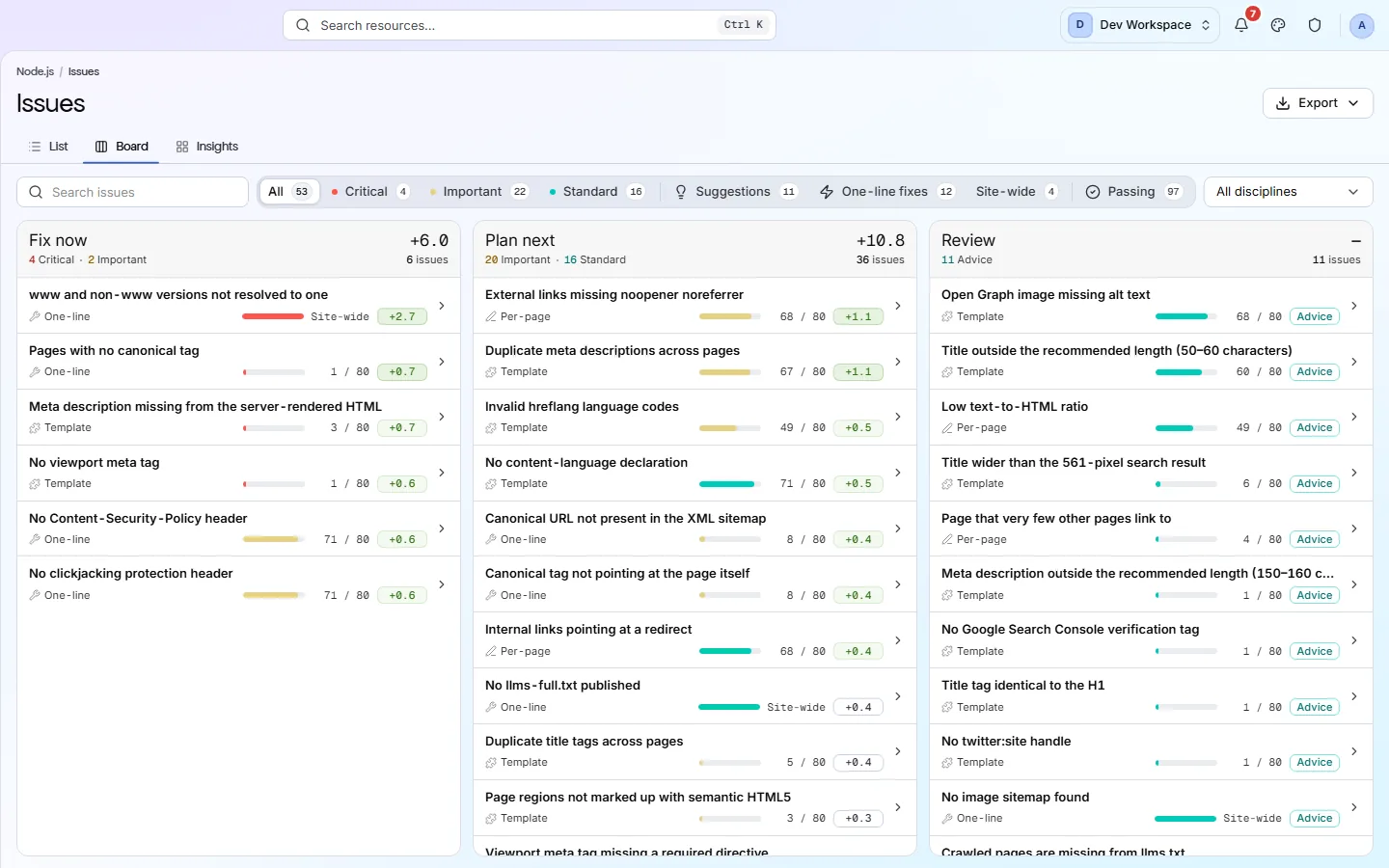
| Board | What can I plan? | The same findings in three columns: Fix now, Plan next and Review. Each column header shows the score you would recover. |
| Insights | Where is the damage? | A grid of severity against affected pages, with every cell clickable, plus bars showing how much score each audit area is losing. |
Board
Working through the list#
Filter, open, fix, scan - then repeat.
- 1
Filter to what you have time for
The row of buttons filters the list: All, Critical, Important, Standard, Suggestions, One-line fixes, Site-wide and Passing. Pick Critical if you have twenty minutes, or One-line fixes if you have five.
- 2
Open the top finding and read its guide
Every check has a written guide beside the finding: what it is, why it matters and how to fix it, with example markup. See Inside a finding.
- 3
Fix it in your codebase
The finding lists every URL it was found on, so you do not have to hunt for the affected pages.
- 4
Scan again, and read Changes rather than Issues
Changes shows what your fix resolved and whether it broke anything else, which is quicker than reading the whole list again.
If somebody else is doing the fixing#
Export the list instead of describing it.
Export in the header downloads the list exactly as you have filtered it, and the whole scan is available as a PDF from Reports. Use these when the person reading the score is not the person editing the pages.
Suggestions cost nothing, so do them last
If the product does not match this page, the page is wrong and we would like to know. Tell us