

Every report a scan can produce, in one place
The Reports view lists all 61 reports and data files a scan can produce. Send a ready-made PDF to a client or your boss, or download the raw data for a spreadsheet or a script.
- reports and data files
- 61
- reports and data files
- file formats
- 5
- file formats
- ready-made documents
- 6
- ready-made documents
Five kinds of report
Pick the report that fits the reader
Each tab holds one kind. A manager wants the PDF. A developer wants the spreadsheet.
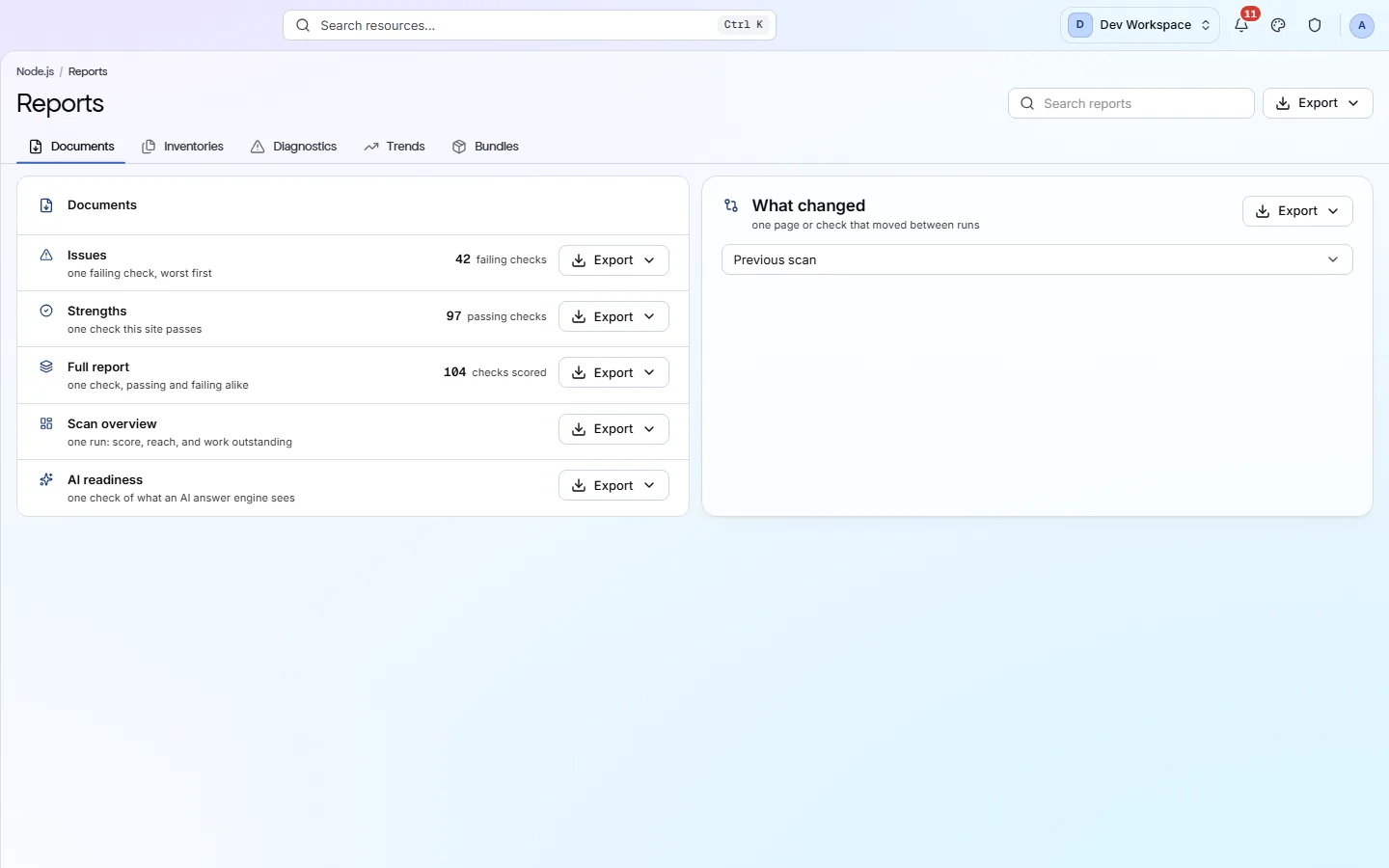
Documents
Six ready-to-send reports, from the failing checks to a full before-and-after comparison. Each explains itself, so the reader needs no PixyScan account.
Inventories
Full lists of what the scan found: every page, link, image, heading, security header, social card and sitemap file.
Diagnostics
Lists of just the problems: broken links, images missing alt text, orphan pages, insecure content, schema errors and more.
Trends
Your scan history and your settings changes over time, to show progress or explain a drop.
Bundles
Everything in one workbook, one sheet per dataset, or an XML sitemap built from the pages the scan found.
What changed
Compare this scan with the previous one, or any earlier scan you pick, and send the difference.
Formats
One report, the format you need
- PDF
Clients, managers and anyone who just wants to read it.
The six documents and Scan history.
- Excel · CSV
Sorting, filtering and sharing with a team in a spreadsheet.
Every report except the XML sitemap.
- JSON
Developers and scripts that process the data.
Every report except the XML sitemap.
- Markdown
Pasting into a ticket, a wiki or an AI assistant.
The six documents and Scan history.
Inside the app
Every report, one tab per kind
The six documents, each with its row count and an Export menu, beside the What changed card.
Click around: it is a working copy of the screen, filled with our test site's data.
Which plans include what
Inventories, diagnostics, trends and bundles start on Hobby. Branded reports, with your own logo and colours or no PixyScan mark at all, start on Pro. A past scan's report always shows that scan exactly as it was.
FAQ
Common questions about this feature
Can I send reports to a client with my own branding?
Yes, from Pro up. Add your logo and colours, choose co-branded (your brand beside PixyScan's) or agency mode (no PixyScan mark), and every document uses it.
Are reports emailed automatically?
Not yet. You download a report when you need it.
Can I download a report for an old scan?
Yes. Open the scan from Scan history and its reports show that scan as it was, so you can send a before and an after.
Continue the product tour
Previous and next features
Features follow the order of the app’s menu. See the full list to jump to any of them.
See what is wrong with your site
Add your site and get your score, your to-do list and a fix guide for every problem. Free for one site and 500 pages a month, with no time limit.
Nothing to install · Cancel any time