

User guide3 min
Changes
What started failing, what stopped failing and what was edited since the last scan. This is the quick read after every deploy.
Why this screen is worth bookmarking#
It shows what moved, instead of repeating the whole list.
A single audit tells you the state of a site on one day. A week later, the only way to see what has moved is to read the whole list again and try to remember which parts you had already seen.
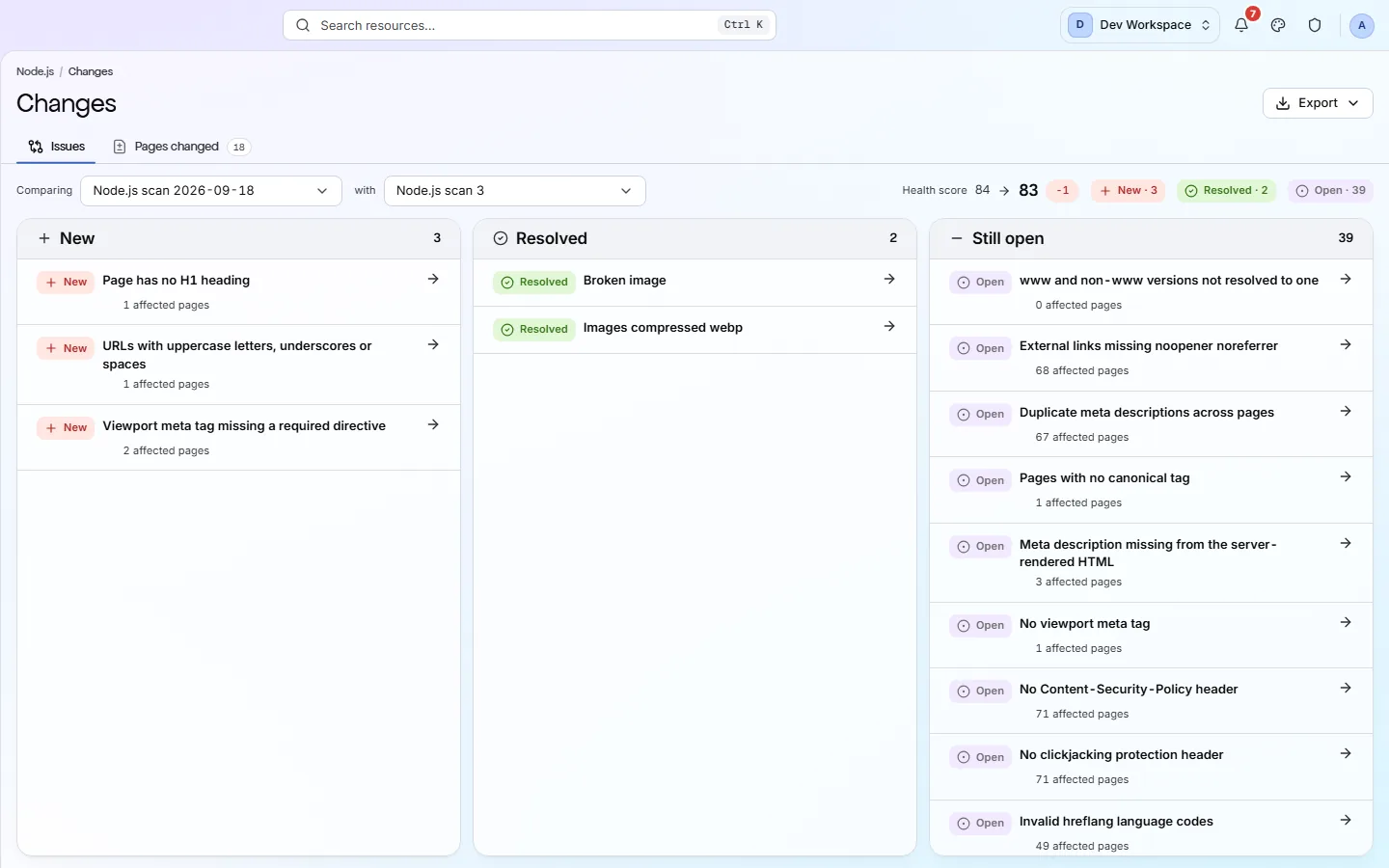
This screen does that for you. Each scan is compared with the previous scan of the same branch, and the result is three columns: new, resolved, and still open.
app.pixyscan.com/w/…/s/…/changes
How to get there#
Monitor → Changes.
- 1
Open Changes in the sidebar
Between Reports and Scan history.
- 2
Or press “Since the previous scan” on the overview
In the row of links under the score.
- 3
Change either scan with the two pickers
The older picker only lists scans that measured the same thing, so you cannot pick a comparison that means nothing.
The two tabs#
One for checks, one for pages.
| Field | Answers | What it does |
|---|---|---|
| Issues | Which checks moved? | New, Resolved and Still open, with one row per check and the pages it affects. Read this after a fix. |
| Pages changed | What was edited? | Modified, Added and Removed, showing each changed field with the old value struck through beside the new one. Read this after an unannounced deploy. |
Pages changed
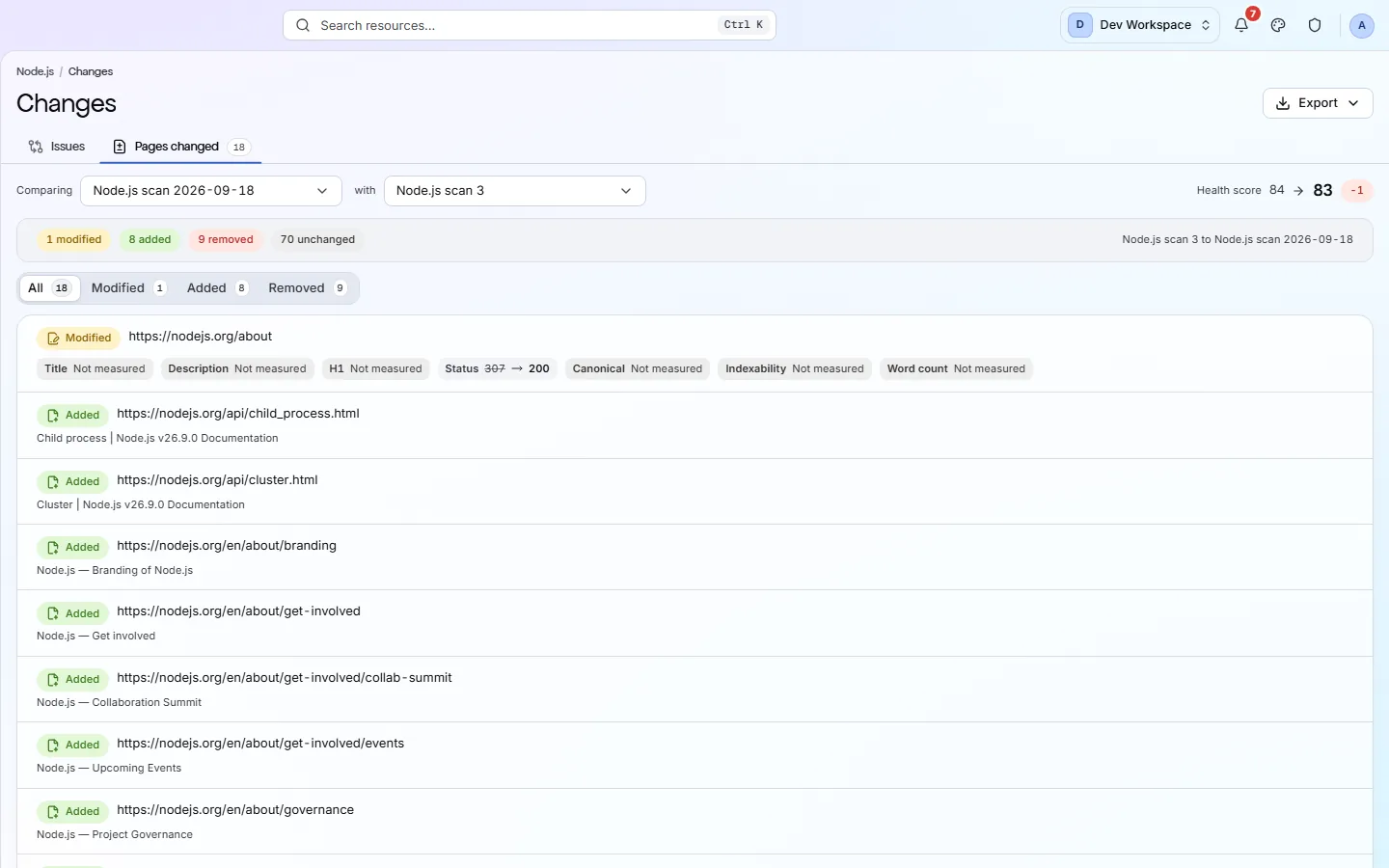
Both tabs compare the same two scans, and switching between them keeps your selection. The tab and both scans are saved in the address, so a link you share opens the same comparison.
Comparisons stay on one branch#
A preview deploy cannot look like a problem on production.
Every scan records which branch it measured, and is only compared with the previous scan of that same branch. Production history stays production history, so an unfinished preview deploy never looks like a collapse on the live site.
This screen needs two scans
If the product does not match this page, the page is wrong and we would like to know. Tell us