

User guide3 min
Plan & billing
Two tabs: Usage shows what this billing period has spent and what is left, and Plan details shows what you are subscribed to. The figure worth watching is the projection.
How to get there#
Settings → Plan & billing.
- 1
Close any open site
Click the mark, top left.
- 2
Under Settings, choose Plan & billing
Visible to workspace admins and owners only.
app.pixyscan.com/w/…/settings/billing
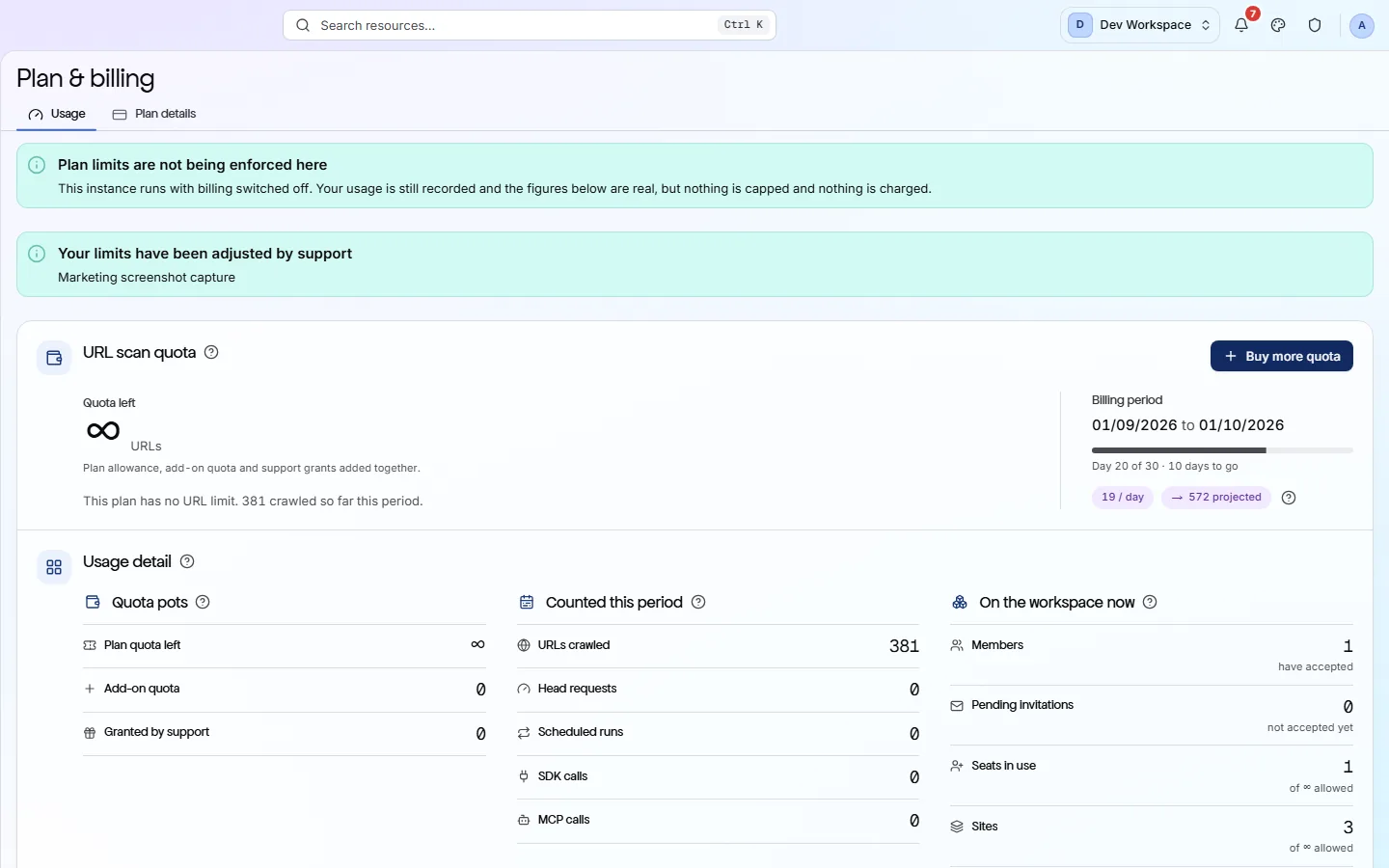
The Usage tab#
One credit per crawled URL, counted per billing period.
| Field | What it means | What it does |
|---|---|---|
| Quota left | URLs | Your plan allowance, any add-on quota and any support grant, minus what has been crawled. |
| Billing period | A month | Shown with a progress bar, such as day 20 of 30, so you can compare spend against time left. |
| Per day · projected | 19 / day → 572 | How fast you are spending, and what that adds up to by the end of the period. Check this before you run out. |
| Quota pots | Three | Plan quota, add-on quota you bought separately, and anything granted by support. |
| Counted this period | Five lines | URLs crawled, head requests, scheduled runs, SDK calls and MCP calls, so you can see where an unexpected spend came from. |
| On the workspace now | Four lines | Members who have accepted, invitations still pending, seats used against seats allowed, and sites against sites allowed. |
Some deployments run with billing switched off
The Plan details tab#
What you are subscribed to, and what it allows.
Your plan, its limits (seats, sites, URLs per scan and URLs per period) and the controls to change or cancel it. To add credits without changing plan, use Buy more quota on the Usage tab.
If the product does not match this page, the page is wrong and we would like to know. Tell us