

User guide8 min
Site settings
Nine tabs, covering what gets checked, what gets crawled, when scans run, who is told about them, who can see the site, and what a build pipeline needs.
How to get there#
Manage → Settings, at the foot of the sidebar.
- 1
Open Settings in the sidebar
Pinned to the bottom, under Manage.
- 2
Pick a tab
Checks, Ignored issues, Crawl, Schedule, Alerts, SDK & CI/CD, Members, History, Danger zone. The tab you are on appears in the address, so you can bookmark it.
app.pixyscan.com/w/…/s/…/settings
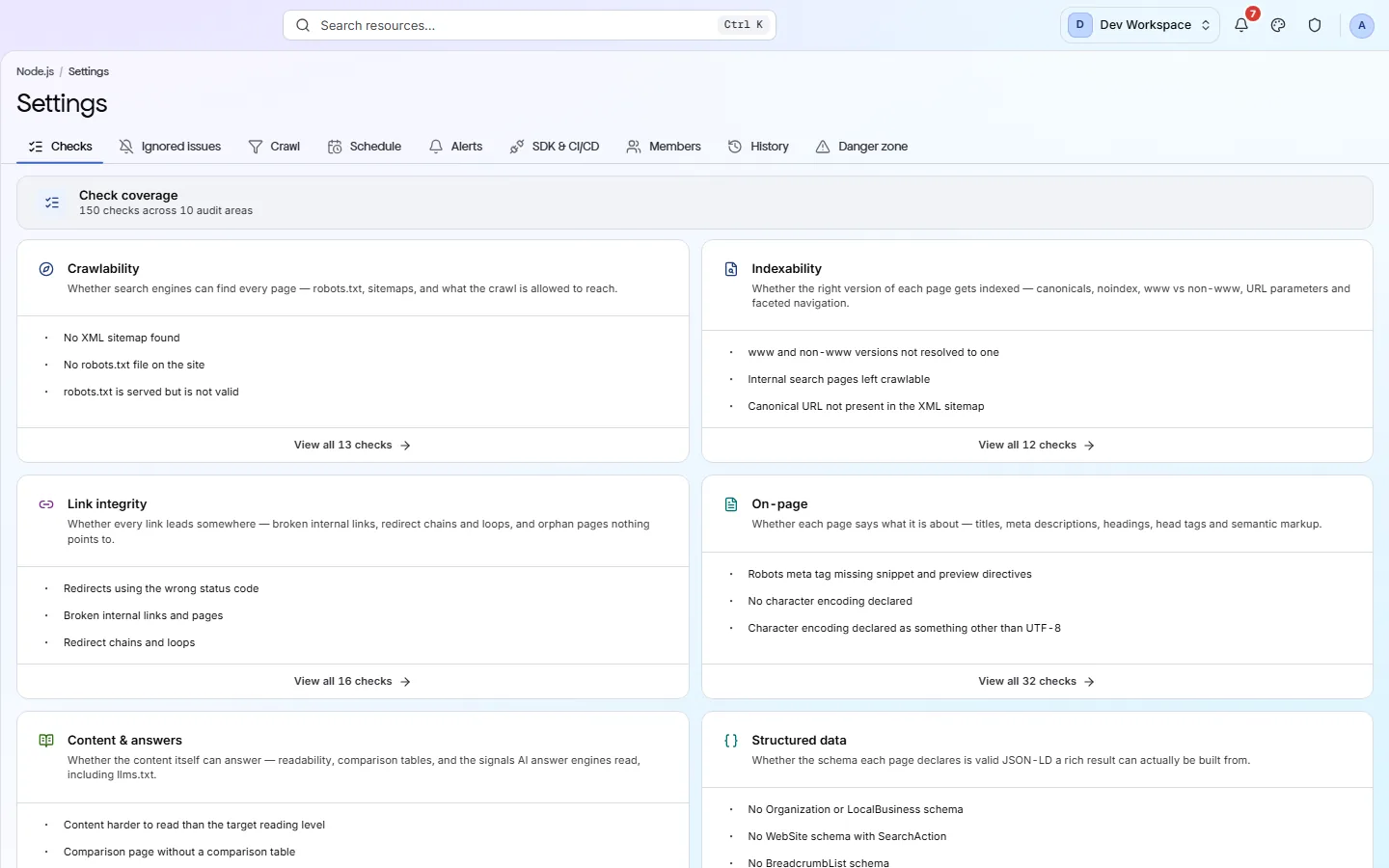
The nine tabs#
What each one owns.
| Field | Owns | What it does |
|---|---|---|
| Checks | What gets judged | Every audit area and its checks, which you can switch on or off by group. Turning a group off changes the findings and the score, but not what gets crawled. |
| Ignored issues | What you muted | Checks you dismissed from the Issues screen. Nothing is deleted; it is all listed here. |
| Crawl | What gets fetched | Include and exclude patterns, crawl depth and the page budget. These decide which pages appear in the next scan. |
| Schedule | When it runs | Daily, weekly or monthly, at a time in your own timezone. |
| Alerts | Who is told | Which events are raised, and whether they also go out by email, Slack or webhook. |
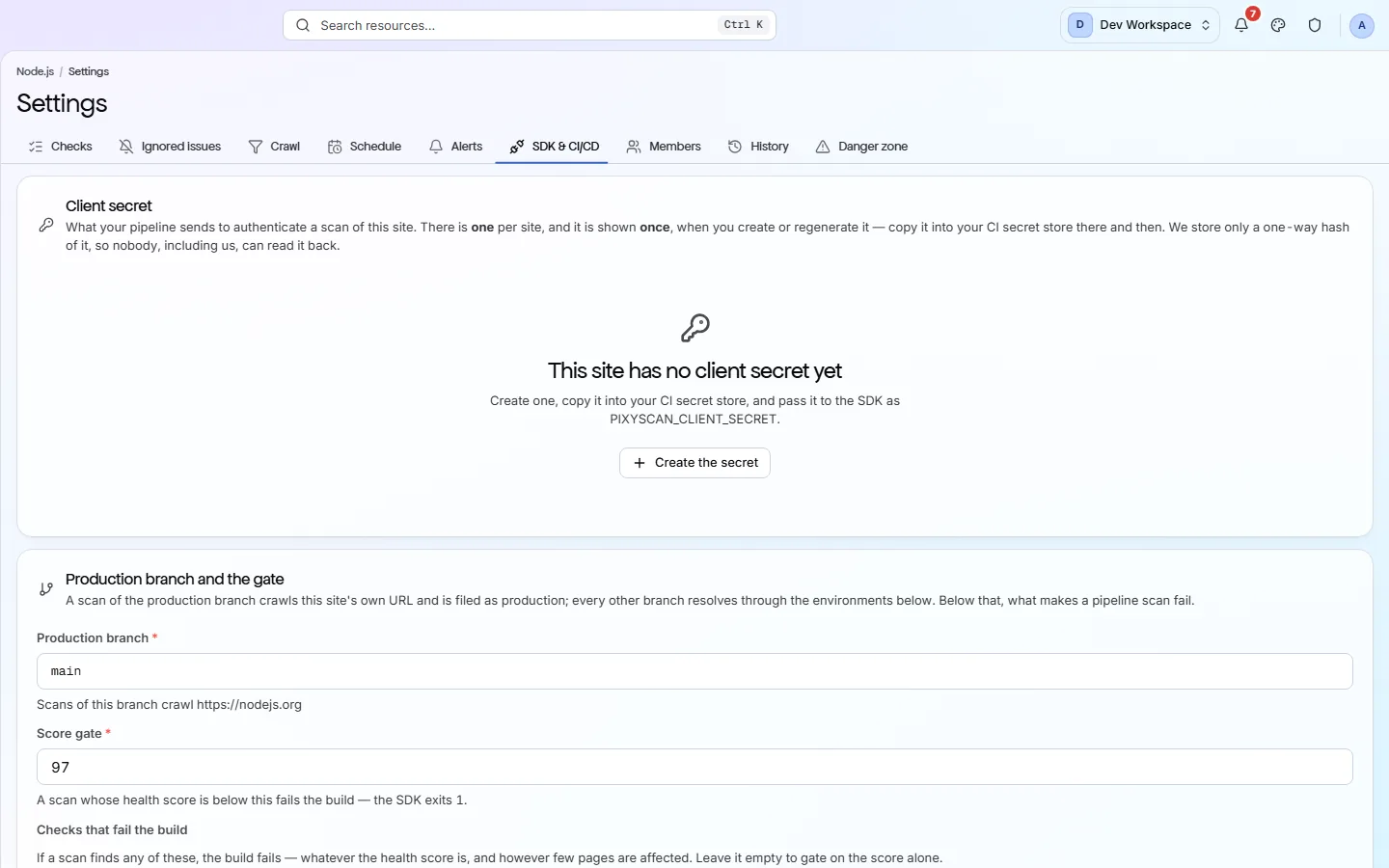
| SDK & CI/CD | The build gate | A client secret, and a list matching branch names to environment URLs. |
| Members | Who can see it | Who can see this site. Use it to give a workspace member access to this site only - see Members. |
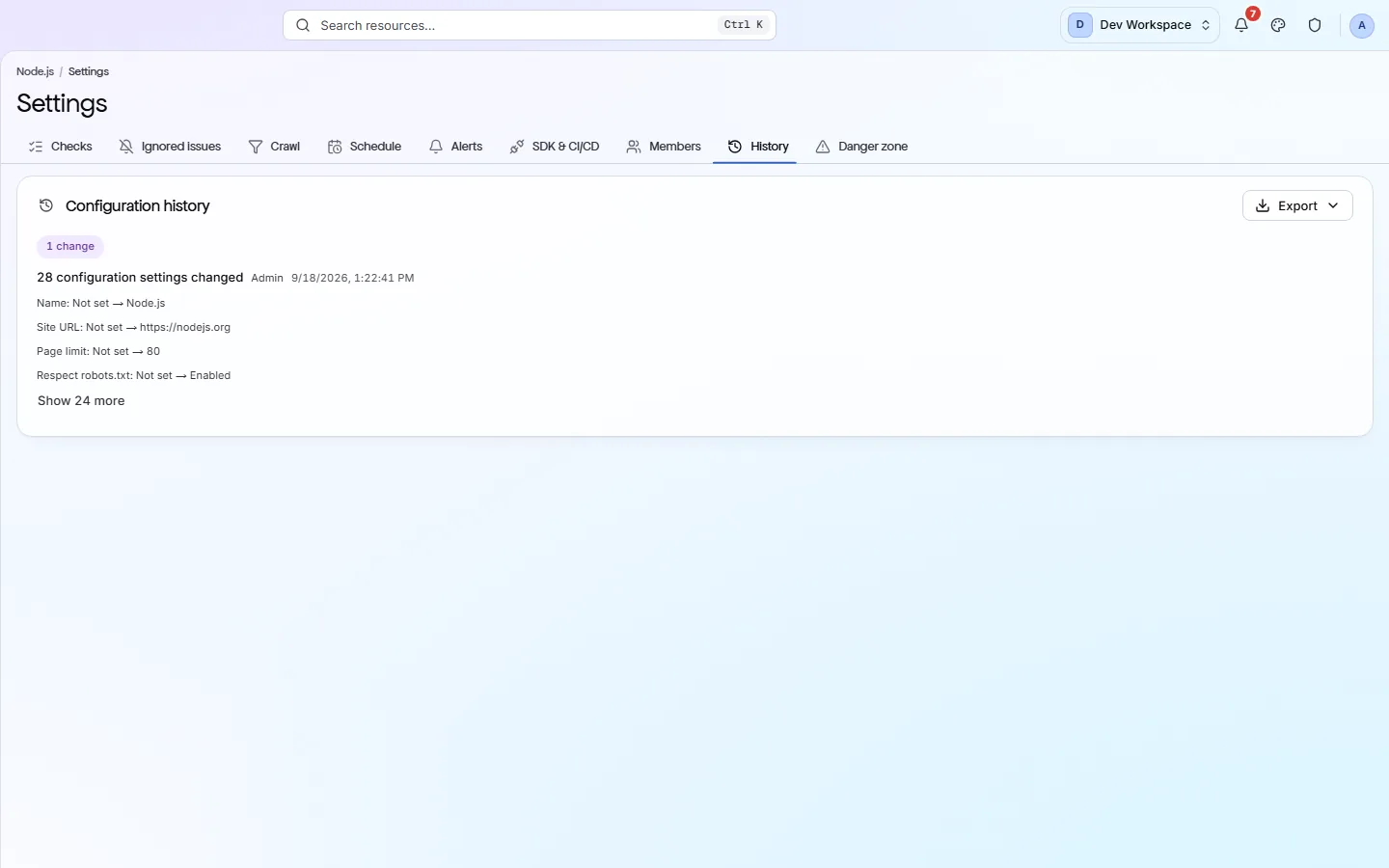
| History | What you changed | A record of every settings change, which explains a score that moved without a deploy. |
| Danger zone | Deleting the site | Deleting the site deletes its scans too. There is no undo. |
Schedule#
Run scans automatically: daily, weekly or monthly.
A scheduled run is compared with the previous run on the same branch, and Changes shows the result as new, fixed and still open. That turns a long list of findings into a short list of what moved this week.
- 1
Open the Schedule tab
Also reachable from the arrow beside Scan now, which has a Schedule scans row.
- 2
Choose a frequency and a time
The time is in your own timezone, so a weekly scan set for Monday at 6am runs at 6am where you are.
- 3
Match the frequency to how often you deploy
A site that ships every day suits a daily scan. A brochure site that changes twice a year suits a monthly one - scanning it daily just spends credits.
A schedule spends credits every time it runs
Alerts#
Five events you can be told about, and three places the notice can go.
| Field | Where it can go | What it does |
|---|---|---|
| Scan completed | Email · Slack · Webhook | A scan finished. Usually the first one to turn off once you trust the schedule. |
| Scan failed | Email · Slack · Webhook | A scan could not finish. Worth keeping on, so a scan that stops running does not go unnoticed. |
| Score decreased | Email · Slack · Webhook | The score is lower than it was on the previous run of the same branch. |
| New critical issue | Email · Slack · Webhook | A critical check started failing that was passing before. |
| Score below threshold | In-app only | Shows on the bell and the Alerts screen only; it is not emailed or sent to a webhook. The threshold is set per site. |
Slack takes an incoming-webhook URL; the generic channel is a JSON webhook you can point anywhere. Every alert email has a one-click unsubscribe, and every alert also appears on Site alerts.
SDK & CI/CD#
Fail a build when the score drops. One command, one exit code - no app to install.
- 1
Issue a client secret
It is shown once, so copy it into your CI provider's secret store straight away. Secrets start with sk_live_, and generating a new one revokes the old one.
- 2
Map your branches to environment URLs
On the same tab. This is how a scan triggered from a preview branch measures the preview deploy rather than production.
- 3
Add the command to the job you want gated
Put it after your deploy step, because it scans a deployed URL rather than your source code.
- 4
Set the site's threshold to what it scores today
Do not leave it at the default - see the warning below.
app.pixyscan.com/w/…/s/…/settings?tab=sdk
.github/workflows/seo.yml
- name: SEO gate
  run: npx pixyscan-sdk run --client-secret "$PIXYSCAN_SECRET"
  env:
    PIXYSCAN_SECRET: ${{ secrets.PIXYSCAN_SECRET }}
The branch is detected automatically on GitHub Actions, GitLab CI, CircleCI, Bitbucket and Vercel, so most pipelines need nothing else. If it cannot be detected, PixyScan uses main.
| Field | Exit code | What it does |
|---|---|---|
| Passed | 0 | The score cleared the site's threshold. |
| Gate failed | 1 | The scan ran and the score is below the threshold. This is the one to fail the build on. |
| Bad input | 2 | A missing secret, an unknown branch or a config path that does not exist. Your pipeline needs fixing, not your site. |
| Outage | 3 | PixyScan could not be reached, or the run could not finish. Retry rather than failing the build. |
Do not leave the threshold at its default
When settings and the report disagree#
A banner tells you, with a Rescan button in it.
Changing a check group or a crawl rule does not change the scan you are looking at - it changes the next one. Until you rescan, every screen that reads a scan shows a notice with a Rescan button. The History tab records what changed and when, which is how a score that moved without a deploy gets explained.
app.pixyscan.com/w/…/s/…/settings?tab=history
If the product does not match this page, the page is wrong and we would like to know. Tell us