

User guide3 min
Pages
Every URL the crawl reached, with no verdicts attached. The same list in two views: a flat table for looking something up, and a tree for seeing the site's shape.
How to get there#
Explore → Pages.
- 1
Open Pages in the sidebar
First under Explore. The badge shows the page count.
- 2
Switch view with the Table / Tree control
Your choice is saved in the address, so a link you share opens the same view.
app.pixyscan.com/w/…/s/…/pages
The two views#
The same crawl, answering different questions.
| Field | Use it when | What it does |
|---|---|---|
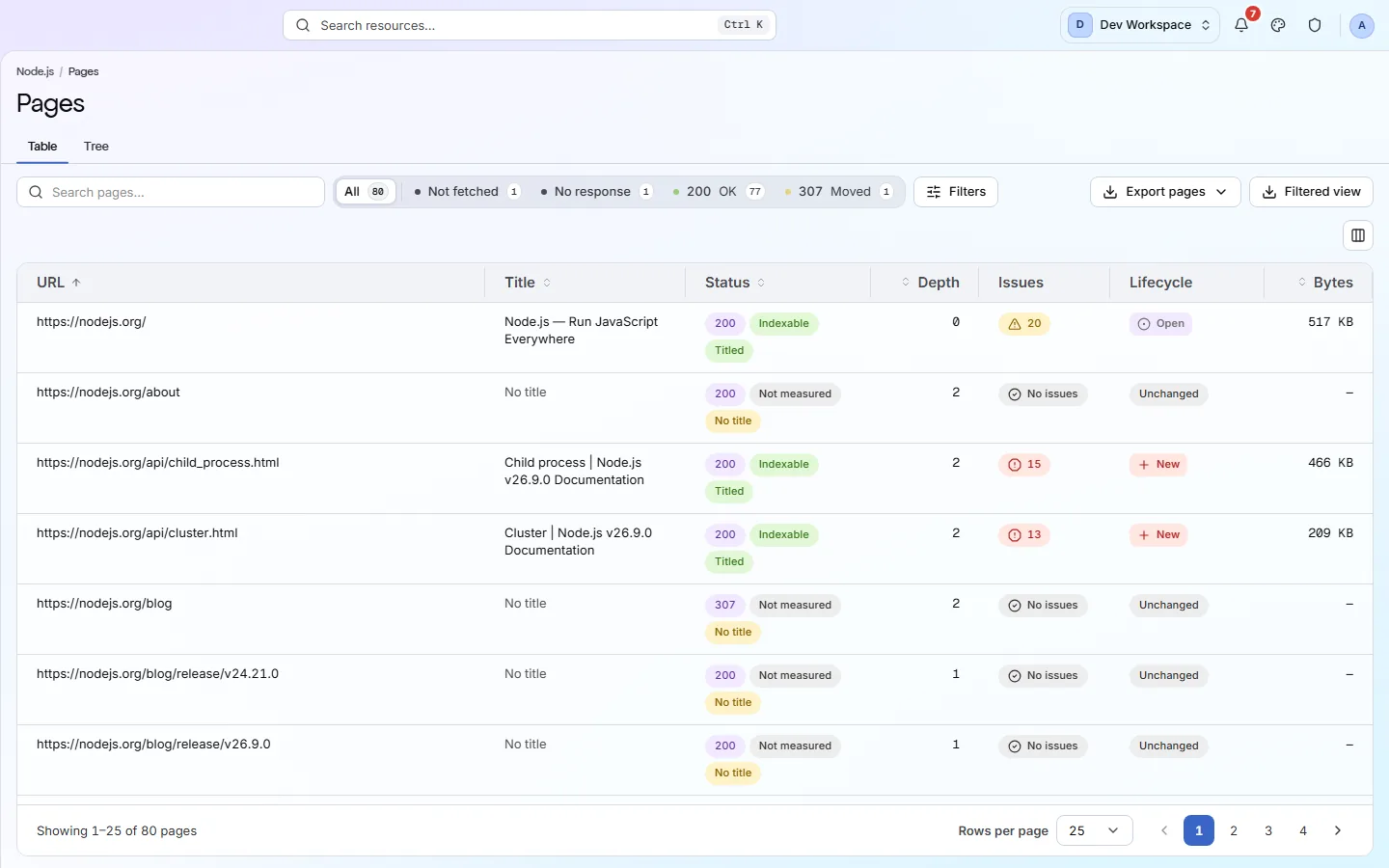
| Table | You know what you are looking for | A flat, sortable list with a search box: URL, title, status code, depth, issue count, lifecycle and size. |
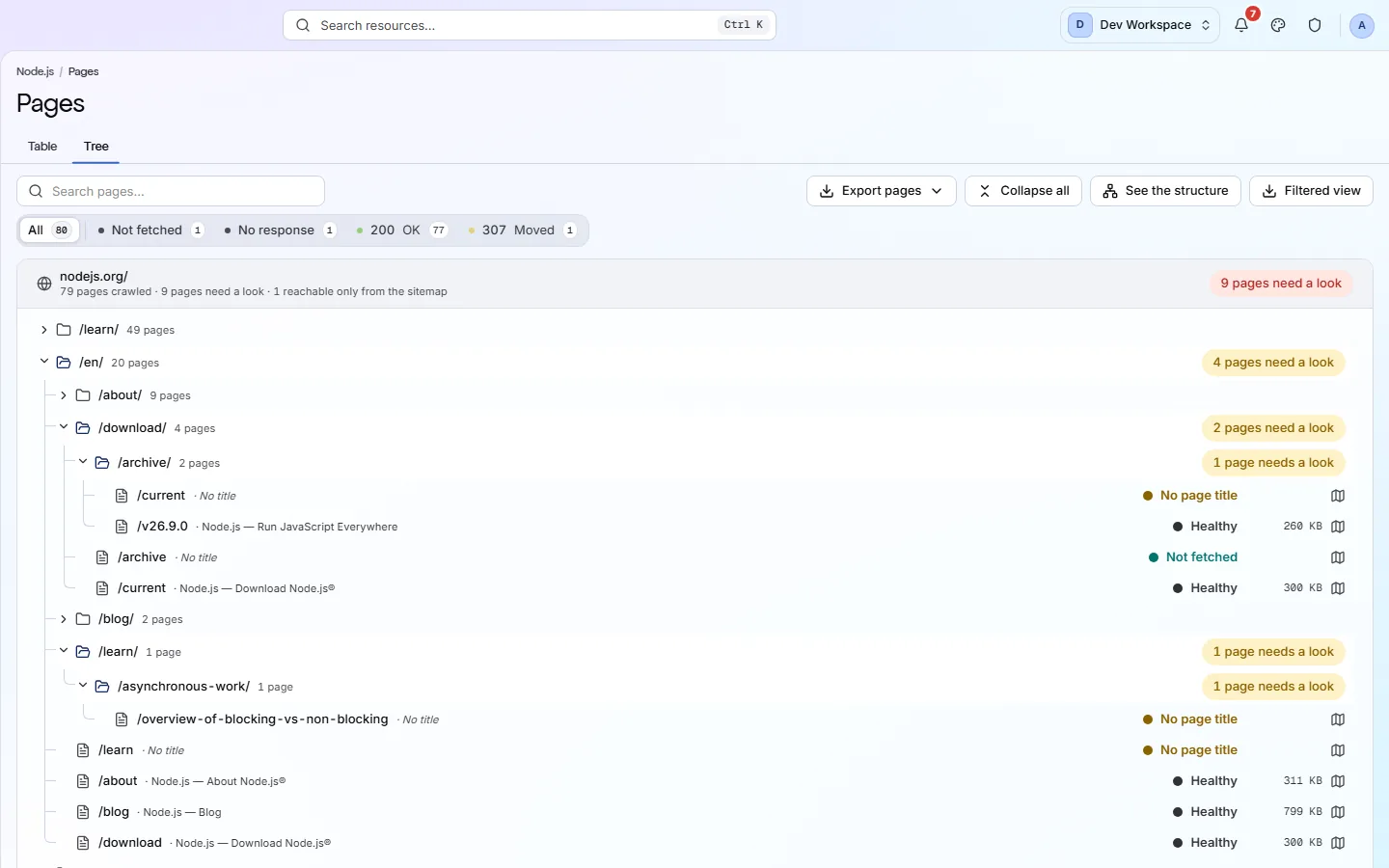
| Tree | You do not | The crawl grouped into folders. Each folder shows how many pages it holds and whether any need attention. |
Tree
Reading the table#
What the crawl found, not what it thinks of it.
| Field | What it is | What it does |
|---|---|---|
| URL | As crawled | The address, shown as a path so the column stays readable. |
| Title | As served | The page's own title tag. |
| Status | HTTP code | The code the server returned. The strip above the table filters on it. |
| Depth | Clicks | How many clicks from the homepage. Search crawlers also find deep pages late. |
| Issues | Count | How many findings were recorded against this URL. |
| Lifecycle | New · Existing · Removed | Whether this URL is new since the previous scan, unchanged, or gone. |
| Bytes | HTML only | The size of the HTML document, not of the whole page. |
This screen shows the crawl, not the checks
It records URLs, status codes, depth and size. Turning a check group off in settings changes the Issues screen but leaves every row here unchanged. A page report is where the two come together.
If the product does not match this page, the page is wrong and we would like to know. Tell us