

User guide3 min
Images
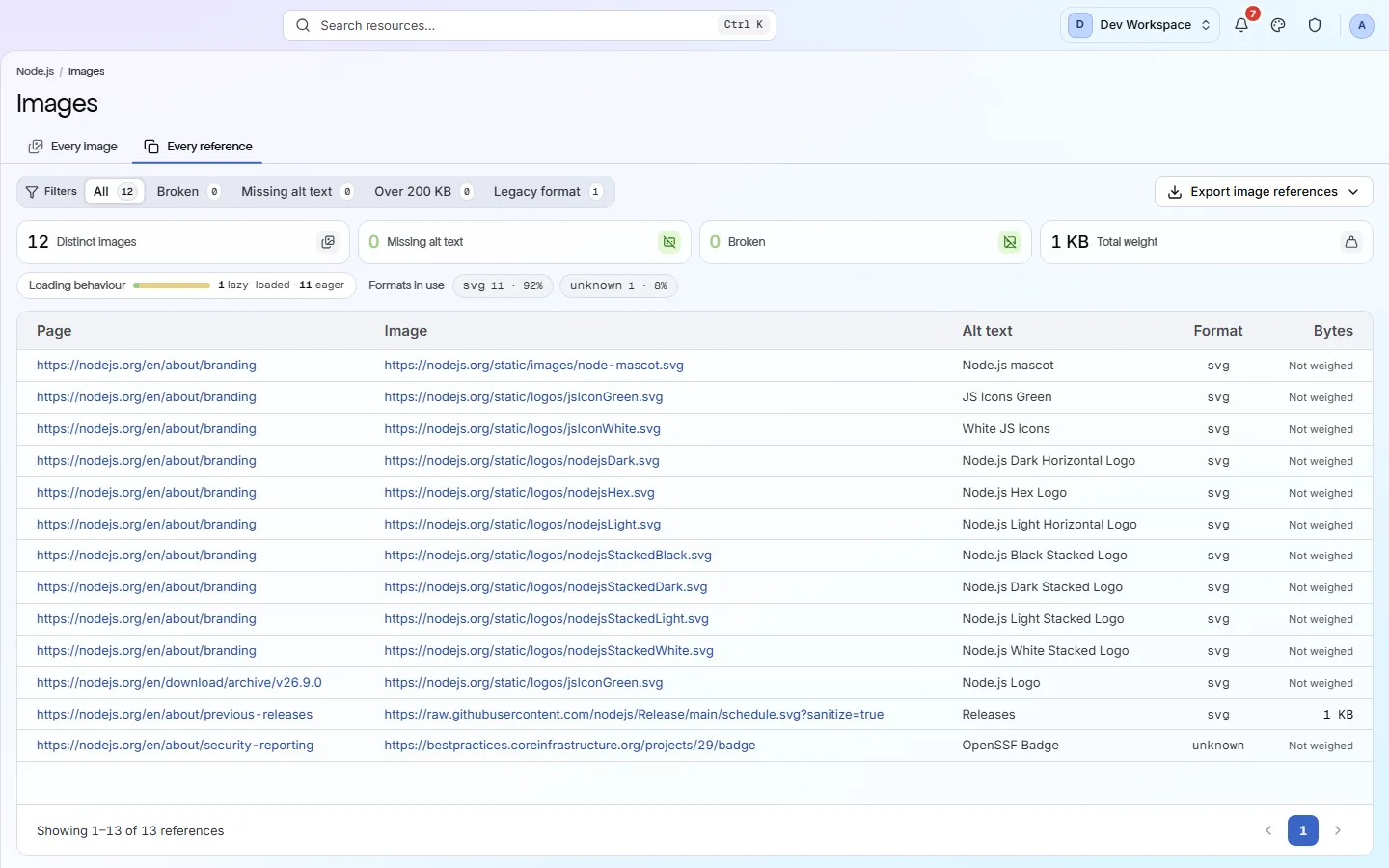
Every image the crawl found. One tab lists each image once; the other lists it once per page it appears on. If you are writing alt text, use the second.
How to get there#
Explore → Images.
- 1
Open Images in the sidebar
After Links. The address says /media, but the screen is called Images.
- 2
Choose one of the two tabs
Every image, or every reference.
app.pixyscan.com/w/…/s/…/media
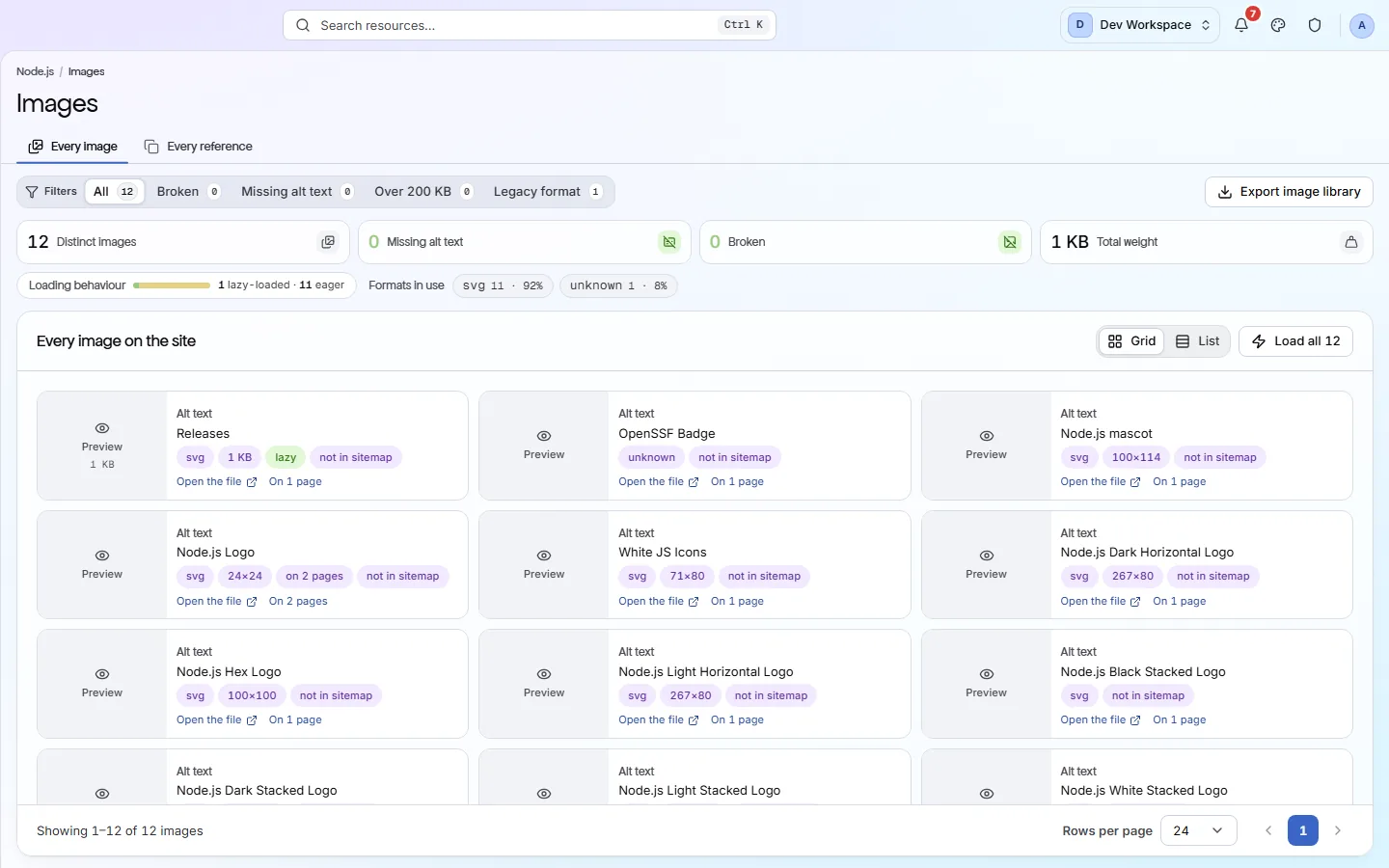
The two tabs#
One row per image, or one row per image per page.
| Field | A row is | What it does |
|---|---|---|
| Every image | One file | Each image once, matched by URL. Use it to find heavy files, or to see which formats you are serving. |
| Every reference | One image on one page | The same logo on forty pages is forty rows. This is the only tab that tells you which page an image without alt text is on. |
Every reference
What the four cards count#
What the crawl found, not what it thinks of it.
| Field | What it is | What it does |
|---|---|---|
| Distinct images | Count | How many unique image URLs the crawl found. |
| Missing alt text | Count | Images served with no alt attribute. This is counted from the crawl, so it does not change when the image check group is turned off. |
| Broken | Count | Images that returned an error when the crawler fetched them. |
| Total weight | Bytes | The combined size of every image on the site. Compare it with page weight on Performance. |
A decorative image needs an empty alt, not a missing one
alt="" tells a screen reader to skip the image, which is right for a spacer or a background pattern. A missing attribute makes it read the filename aloud instead. This screen counts both as missing, so each image needs its own decision.
Each row opens that page's report, where the Images tab shows the image in place.
If the product does not match this page, the page is wrong and we would like to know. Tell us